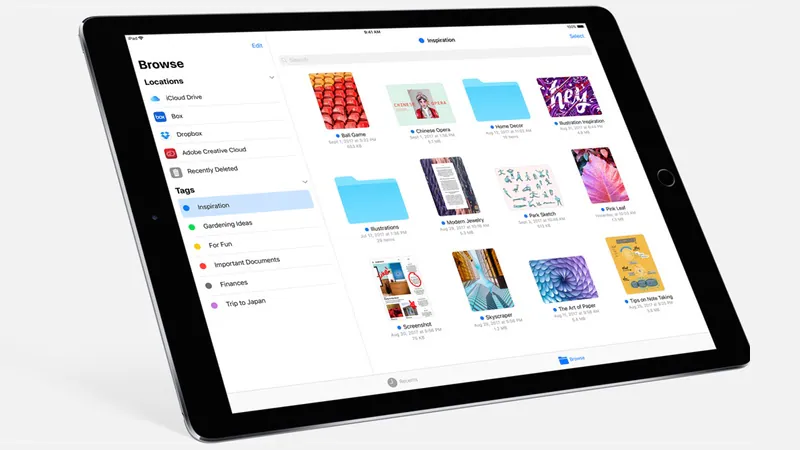
The Files app is one of the most important changes in iOS 11. The iCloud Drive app no longer exists, instead we have an app called Files. This way, all your files will be in one place – files from cloud storage apps like Dropbox, files from other apps that expose documents like PDF Expert 6, and even files on your local device. This provides a convenient way to manage all your files in one place, and works on both iPhone and iPad.
How to download and install iOS 11 on your iPhone, iPad or iPod touch
Files is still in its early stages, and if you’re expecting a full-blown file manager, you’ll need to temper your expectations a bit. Currently, the Files feature allows you to access iCloud Drive as well as local storage called “On My iPhone” or “On My iPad” for files stored on your device. You can connect third-party services like Google Drive to files, but these services open in smaller pop-up screens and don’t take up the entire screen. This allows you to search for these files and copy them to local storage, but it’s not an ideal solution for all cloud storage services. For example, you can’t select multiple files from Google Drive and copy them to iCloud Drive, you have to do it one by one. This isn’t Apple’s fault, as it simply requires developers to fully support files – just like Dropbox does.
20 hidden iOS 11 features you need to know
Here’s what you need to do to start using the Files app on iOS 11.
- Open document App on your iOS device.
- If you are logged into your iCloud account, you will see all your iCloud Drive files here.
- You need to install apps like Dropbox, OneDrive, and Google Drive to access these services through files.
- After installing these applications, open the file and click edit button at the top.
- Now toggle switch Next to every app whose files you want to view in iOS 11 Files app. If the switch is on, it will turn green.
Now you will be able to view all your files in one place. On our iPad, the Files app opens iCloud Drive files in the right pane, but some other apps open in pop-up windows. The Files app lets you search for files in other services, such as Google Drive, but you can’t tag them, mark them as favorites, or add other metadata.
iOS 11 is out, here’s how to check if all your apps are working
However, you can save files from these other apps to iCloud Drive, or to your iPhone or iPad. From there, you can mark files as favorites, add various colorful tags, and more. The Files app can also open certain file types, such as jpg and mp3, and if it can’t open the file, you can always export the file to an app that can. If you save files locally on your iPhone or iPad, you can export them to other apps – for example, text documents can be sent to apps like Ulysses or Microsoft Word. However, apps can’t “share” documents with each other using Files, unlike iCloud, where you can use multiple apps to edit the same file – here you’ll get a new copy of the document from the app you shared it with.
iOS 11 brings improved Dock and multitasking to iPad: How to get started
If you have installed apps that show up in Files but are not logged in to these services, you can easily do this through Files. Log into Dropbox or Google Drive without leaving the app.
Can I create new folders within Files?
Currently, you can do this in iCloud Drive, but not in its local storage. We hope that a future update will allow people to create folders within the “On My iPhone” or “On My iPad” folders.
Can I plug in a Lightning port-based pen drive and open it in Files?
No, currently you can’t do that. Many people have tried this but the pen drive is not showing up in the Files app.
Can I open documents, music, and movies in Files?
You can open and view common file formats such as PDF, doc, and Excel spreadsheets. However, not all Word and Excel formats are supported, so you may have to open a new XLSX file in Microsoft Excel for iOS. The file can play a variety of audio and video file formats, including mp3 and mov, but not all file formats are supported. You can always click the share button and open these files through other applications.
The Files app lets you quickly access files saved in multiple locations, but this is the first version of the app and it’s quite limited in a number of ways. You don’t yet have access to files in a Dropbox folder the way you can iCloud Drive files, and it’s not yet a central place for all your downloaded documents.
For more tutorials, visit our how-to section.
We discuss iOS 11 and the future of iPhone and iPad in depth on Orbital, our weekly tech podcast. You can subscribe to it via Apple Podcasts or RSS, or click the play button below.

