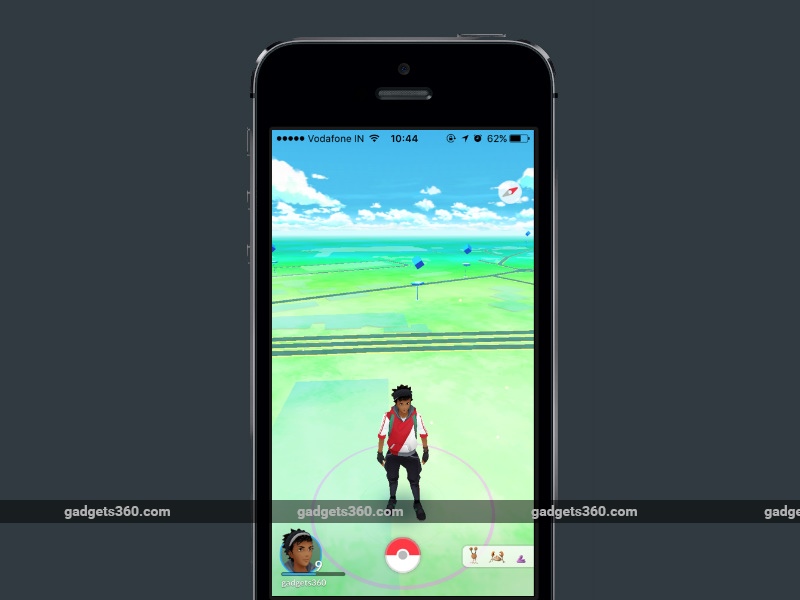
Downloading and installing Pokemon Go on Android is very easy, but many readers have written to us asking how to download the game on iPhone. If Pokemon Go is available in your area, all you need to do is head to the App Store and download the app. The problem is that it’s only officially released in a few regions.
(See also: Pokemon Go player? This is how much mobile data you can expect to consume)
If it’s not available in your region, you can still install the game, but the process will take a little longer. You need to create a new Apple ID for the region where Pokemon Go is officially launched (such as the United States). Follow the steps below and you should be able to download and install Pokemon Go on your iPhone no matter where you are.
(See also: How to play Pokemon Go in India? Here’s everything you need to know)
How to create a US account on iTunes
- Create a new Apple ID on this page.
- choose USA Select from the drop-down menu when creating an Apple ID.
- Open on your iPhone app store. tap Featured on the bottom panel.
- Scroll to the bottom and click your Apple ID.
- tap Sign out If you are already logged in.
- Next, click login button.
- Enter your new Apple ID and password.
- You will see a pop-up window that says “This Apple ID is not yet used in the iTunes Store”. tap review.
- tap USA Under Country or Region. tap Next.
- Read the terms and conditions and Apple’s privacy policy, then click agree.
- tap agree Again in the popup window.
- Click under Billing Information without any.
- Scroll down and enter a valid US address – search the internet!
- Enter phone number. Then click Next.
- tap complete in the upper right corner.
(See also: “Pokémon Go” review)
How to download and install Pokemon Go on iPhone
- Now that you have a US account, just click search Buttons are located on the bottom panel.
- search Pokémon Go Or click here.
- tap get Download and install Pokemon Go on your iPhone.
How to download Pokemon Go iOS
The above steps will help you download Pokemon Go on your iOS device. After installing the app, repeat steps 3 to 7 above to switch back to your primary Apple ID. The game will still work even after you switch IDs, but you will have to return to your US iTunes account to update the app.
(See also: Pokemon Go Tips and Tricks)
Do you have Pokemon Go installed on your iPhone? Do you enjoy this game? Let us know in the comments. For more tutorials, visit our how-to section.

