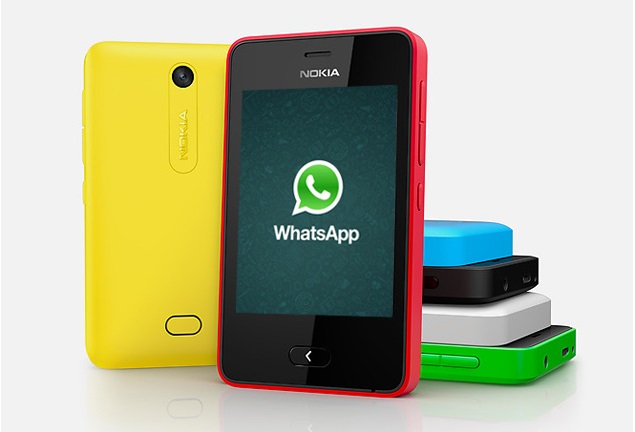
More than 1.2 billion people use WhatsApp globally, and 200 million people use WhatsApp in India alone. In fact, it’s probably one of the first apps Indians download when buying a new smartphone, as it has become the country’s default way of texting. However, it can also become annoying when it automatically downloads all your media files, from pictures to videos and more recently GIFs, not to mention audio files and videos. These not only clutter your phone’s gallery and music player, but also take up a lot of storage space and data. Here’s how to stop WhatsApp from automatically saving photos and audio on your phone.
How to stop automatic downloading and saving of pictures, videos and other media on Whatsapp for Android
WhatsApp for Android has a switch that allows you to stop downloading images and videos. You can do this:
- Open WhatsApp and make sure you’re looking at the main window – where all your chats are displayed. Click the three vertical dots in the upper right corner > Settings.
- Now click on Chat Settings > Media Automatic Download. You’ll see three options: When using cellular data, When connected via Wi-Fi, and When roaming. Click on each item and uncheck all three options (Image, Audio, and Video) to disable automatic downloads.
To view photos, you must download them. When you do this, WhatsApp will save them in a folder and you may be inundated with silly memes and other unwanted content that can be seen by anyone who opens your phone’s Gallery app. However, it is possible to prevent these photos from appearing in the Gallery app. Here’s how:
- Download Quickpic and open the application.
- Navigate to the WhatsApp media folder. The location of the WhatsApp folder varies from device to device, but should generally look like this: Internal Storage (sometimes labeled sdcard0) > WhatsApp > Media > WhatsApp Pictures, > WhatsApp > Media > WhatsApp Audio, and WhatsApp > Media > WhatsApp Video.
- Long press on the WhatsApp Pictures folder and make sure it is selected. Do the same for the WhatsApp Video and WhatsApp Audio folders.
- After selecting three folders, click the three dot icon in the upper right corner > Hide. This will ensure that the gallery app does not display them. You can still view these images and videos in WhatsApp and through any app that allows you to view hidden folders. But if you hand your phone to someone, you no longer need to worry about them seeing their WhatsApp photos and videos through the Gallery app.
How to hide the last thing you saw on WhatsApp
How to stop automatic downloading and saving of pictures, videos and other media on WhatsApp for iPhone
You can also turn off automatic downloading of media on your iPhone through the Settings menu.
- Open WhatsApp and click set up button in the lower right corner and click Data and storage usage
- In this menu you will see Automatic media download Options at the top
- For photos, audio, videos, and documents, select the Never option
Now, only the files you choose to download manually will appear on your phone, and you can even choose to prevent photos and videos from appearing on your phone’s camera roll. All you need to do is go to Chat history In the Settings menu, open Save to camera roll menu and close it. This will prevent photos people send from appearing in your Camera Roll and taking over your synced photo stream.
How to block a contact on WhatsApp
Not automatically saving images has its advantages, but it also means you have to download each photo manually. If you end up downloading every image, it’s best to keep this feature active. Please tell us in the comments if this tutorial was helpful to you. For more helpful articles like this, visit our How To section.

