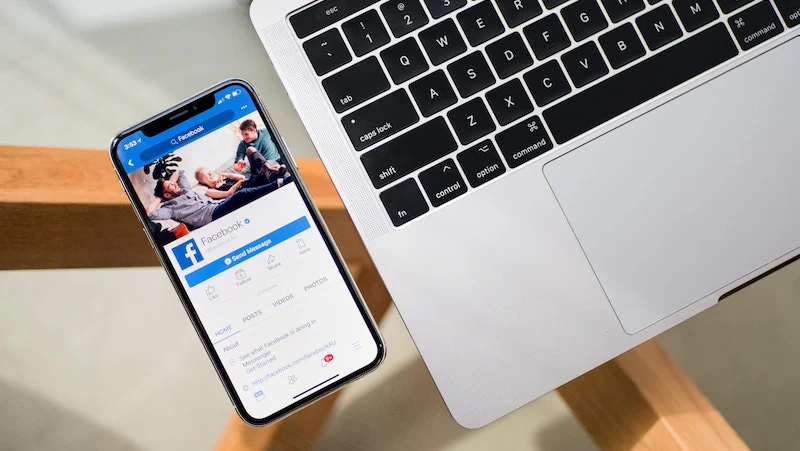
Facebook’s use of your personal data to make money has been thrust into the spotlight following the Cambridge Analytica revelations. While it’s common knowledge that Facebook makes money from ads, few people know that the company provides access to vast amounts of data about you to advertisers and even third-party apps on Facebook. Next time you take a “personality test” quiz, be aware that it may just be a shady activity by a company to influence key decisions, such as which party you vote for in power.
This makes your personal data a weapon in elections – or more generally “buying decisions” – and you have every right to stop this from happening. If you want to stop this surveillance entirely, you may need to delete your Facebook account entirely, and possibly even your WhatsApp and Instagram accounts. If this isn’t an option, follow the steps below to limit the amount of data third-party apps can use.
If you are using the Facebook website on a desktop or mobile device.
- Go to Facebook’s application settings page.
- the following Apps, websites and plug-insclick edit.
- Click now Disable platform.
If you use the Facebook app on Android:
- Open the app and click three horizontal lines icon in the upper right corner.
- Scroll down and click Settings and privacy.
- tap Account settings.
- tap app.
- tap platform.
- tap edit.
- tap Close platform.
If you use the Facebook app on iOS:
- Open the app and click three horizontal lines icon in the lower right corner.
- Scroll down and click set up.
- tap Account settings.
- scroll down to app.
- tap platform.
- tap edit.
- tap Close platform.
This will remove all third-party applications from your Facebook profile. Please note that this may affect how you use other applications. For example, if you use Facebook to log into an app or website, this will disable that feature. You must reset your password on all these apps and websites. You also won’t be able to access any apps you might use on Facebook.
If this step is too drastic, you may want to try limiting the information that third-party apps are allowed to use on Facebook. If you access Facebook through a desktop or mobile browser, follow these steps:
- Go to the application settings page on the Facebook website.
- scroll down to Apps used by others
- Click edit. Here you can see the true extent of surveillance on Facebook. Even if you don’t allow apps to use your information, your friends may inadvertently share your personal data with third-party apps. This includes information like birthdays, family and relationships, app activity, and even whether you’re online.
- Uncheck everything and click save.
If you use the Facebook app on Android:
- Open the app and click three horizontal lines icon in the upper right corner.
- Scroll down and click Settings and privacy.
- tap Account settings.
- tap app.
- tap Apps used by others.
- Uncheck everything.
If you use Facebook for iOS, follow these steps:
- Open the app and click three horizontal lines icon in the lower right corner.
- Scroll down and click set up.
- tap Account settings.
- scroll down to app.
- tap Apps used by others.
- Uncheck everything.
This will quickly limit the amount of information you share with Facebook. Remember, if you need to stay in touch with someone on the social networking site, you can use Facebook Messenger without a Facebook account.
You can also limit the information shared with Facebook advertisers. If you use a mobile browser or use Facebook on your desktop, follow these steps.
- Go to Facebook’s ad settings page.
- tap Ad settings.
- Then click Ads based on my use of sites and apps and then leave.
- Then click Advertising on Facebook Inc.’s apps and websites On the previous page, then tap No.
- tap Advertise through my social activities and click no one.
If you’re using Facebook on Android, follow these steps.
- Open the app and click three horizontal lines icon in the upper right corner.
- Scroll down and click Settings and privacy.
- tap Account settings.
- tap advertise.
- tap Ad settings.
- tapAds based on my use of sites and apps and then leave.
- Then click Advertising on Facebook Inc.’s apps and websites On the previous page, then tap No.
- tap Advertise through my social activities and click no one.
If you use Facebook on iOS, follow these steps to limit advertiser access to your Facebook data:
- Open the app and click three horizontal lines icon in the lower right corner.
- Scroll down and click set up.
- tap Account settings.
- tap advertise.
- tap Ad settings.
- tap Ads based on my use of sites and apps and then leave.
- Then click Advertising on Facebook Inc.’s apps and websites On the previous page, then tap No.
- tap Advertise through my social activities and click no one.
For more tutorials, visit our how-to section.

