Printing files to PDF is a useful feature. You can use it to archive desired web pages, such as those showing your tickets or important source material for research. The website containing the research material you need may have been removed, or sometimes there may be no internet connection when you need to refer to it.
In all these cases, it might be a good idea to print the content to PDF and save it locally on your Android device. The process itself is simple, but there are a few things you need to check before you start printing your files to PDF. The first is whether the application you are using supports printing. Some apps don’t support it, but most Google apps do.
Apps like Google Docs make it easy to save as PDF – meaning all your documents are taken care of. You can also save most files in your Google Drive account as PDFs, use Google Photos to convert images to PDFs, or use Chrome to save entire web pages.
If your app doesn’t support printing, you can try taking a screenshot as a backup. Not all web pages can be printed to PDF. When you open certain web pages, such as Amazon’s shopping cart, the print option does not appear in your browser. But for most other pages, the print option will appear and allow you to print to PDF. Here’s how to save as PDF on Android:
- Open the file or web page you want to print to PDF.
- Click three vertical points icon in the upper right corner.
- tap Print.
- tap Select printer.
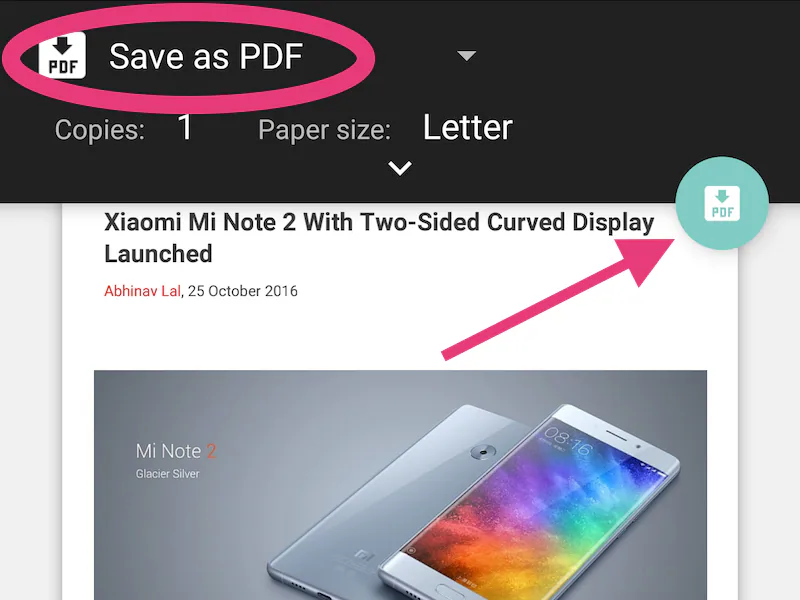
- tap Save as PDF.
- Click save icon.
- Now you can choose where you want to save the file and click save.
This is how to print to PDF on Android. For more tutorials, visit our how-to section.

