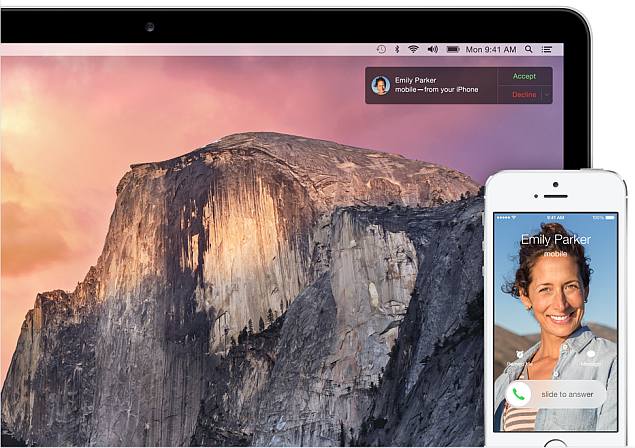
One of the best new features on iOS and Mac is the ability to seamlessly switch between Mac, iPhone, iPad, and iPod touch (5th generation). Continuity lets you make and receive calls, send and receive text messages from your iPad, iPod touch (5th generation) or even your Mac. It also lets you continue using supported apps and easily share your mobile Internet connection between Apple devices. If you’re writing a document in Pages or editing a photo on your Mac, you can continue immediately from your other Apple devices.
If your device supports continuity, this feature is enabled by default. But if you can’t use it yet, here’s what you need and how it works.
what is continuity
Continuity mainly includes the following four characteristics:
1. hand off: The ability to continue using an application where you left off. Whether it’s an unfinished message in Mail or a document in Pages, they’re automatically synced between Apple devices through Handoff. Third-party developers can also add this feature to their apps, but keep in mind that this feature will not work with third-party apps unless they have been explicitly updated to support switching across various devices.
2. Instant hot spots: Let your Apple devices easily share your mobile Internet connection. As long as your device supports this feature, you don’t need to enter a password to connect to the hotspot.
3. Telephone: You can make and receive calls using any supported Apple device.
4. Short message: In addition to sending iMessages as usual, you can now send and receive text messages using any supported Apple device.
Will it work on my Apple device?
Switch and Instant Hotspot are available on the following devices running iOS 8.1 or later:
1. iPhone 5, 5c, 5s, 6 and 6 Plus
2. iPhone 4s (for shared iPhone calls only)
3. iPad (4th generation), iPad Air, iPad Air 2
4. iPad mini, iPad mini with Retina display, iPad mini 3
5.iPod touch (fifth generation)
And the following Macs running OS X Yosemite:
1. MacBook Air (Mid 2012 and later models)
2. MacBook Pro (Mid 2012 and later)
3. iMac (Late 2012 and later)
4. Mac mini (Late 2012 and later)
5. Mac Pro (Late 2013)
Other continuity features will work on any device that supports iOS 8.1 or OS X Yosemite.
How to set up continuity
There are four things you need to ensure before using any continuity features. These are:
1. All your devices are connected to the same Wi-Fi network.
2. You are logged into the same iCloud account on all your devices.
3. You are logged into FaceTime using the same iCloud account on all devices.
4. Your devices are close to each other and Bluetooth is turned on.
Once you’ve done this, continuity will work because it’s enabled by default. Here’s how to manually enable all features if any issues arise.
hand off
1. On your iOS device, go to Settings > General > Handoff & Suggested Apps > Turn On.
2. On your Mac, go to System Preferences > General > Check Allow switching.
Once you’ve done this, for example, if you’re composing an email on your iPhone and your Mac is nearby, the message will appear in the Dock. Clicking this button will let you continue composing the email where you left off, without having to first save the draft on your iPhone, then find it on your Mac, and so on.
Instead, if you start a task on your Mac, an icon pops up on your iPhone or iPad that you can click to quickly complete the task. At launch, Handoff works with Apple apps like Mail, Safari, Pages, Numbers, Keynote, Maps, Messages, Reminders, Calendar, and Contacts, but many third-party apps should be adding support soon.
Instant hotspot
1. Settings > Personal Hotspot > Enable. You can do this on your iPhone or iPad.
2. Now the mobile internet connection will appear as a hotspot on your Apple device. You can connect to it without entering a password as long as you meet requirements such as proximity and logging in with the same Apple ID.
Phone calls and text messages
We’ve described this in detail here. You can follow the steps in that article.
If you’re experiencing continuity issues, you can check out this Apple Support page for some tips on how to resolve the issue.
You can check out more tutorials in our How To section.

