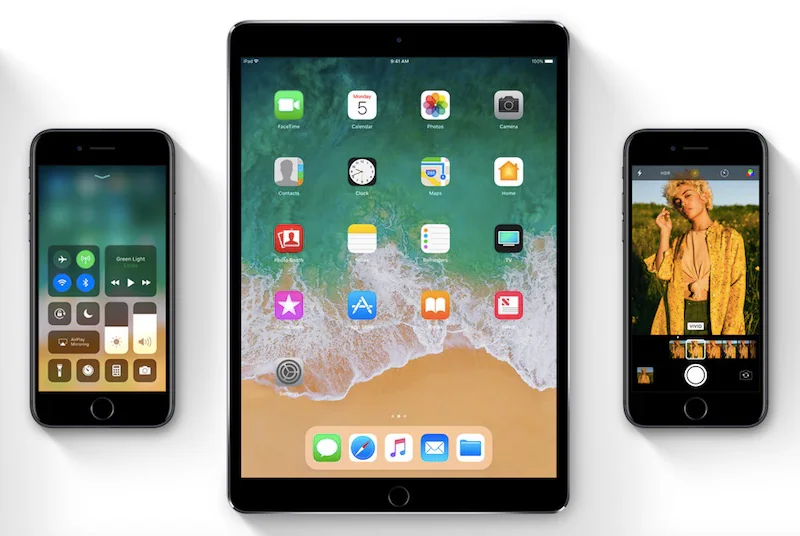
If you’re reading this article, it means you probably downloaded and installed the iOS 11 beta on your iPhone, iPad, or iPod touch and are regretting that decision. Switching back to an older version of iOS isn’t as simple as installing the iOS 11 beta. We always recommend taking a full backup of your iOS device before taking any risky steps like switching to an iOS beta. If you do this, you won’t have to worry too much at all.
If you don’t make a full backup, you may lose some data when downgrading to iOS 10. The reason is simple – if your device is running iOS 10, you cannot restore an iOS 11 backup. So, hopefully you have backed up your device or you don’t have any important data on your device with iOS 11 installed. If you’re ready to revert to iOS 10 from iOS 11 Beta, keep reading.
How to revert to iOS 10 from iOS 11 beta
These steps will help you downgrade from iOS 11 Beta to iOS 10.
- Be sure to check that you have the latest version of iTunes.
- Now you need to download the iOS 10.3.3 beta recovery image. It depends on how you downloaded the iOS 11 Beta, as there are separate links for Developer Beta, Public Beta, or Apple Customer Seed. Most people – like those who follow our instructions – will have the public beta, so if you’re unsure, stick with that.
- You need to enter your Apple ID and password, log in and download the image file.
- Connect your iOS device to a PC or Mac running iTunes.
- Now you need to put your iOS device into recovery mode: If you have an iPhone 7 or iPhone 7 Plus, press and hold the Volume Down button and the Power button on your phone until you see Recovery Mode appear on your phone (the iTunes logo with the Lightning cable). For an older iPhone, iPad, or iPod touch, press and hold the Power and Home buttons until Enter Recovery Mode appears on your phone (iTunes logo with Lightning cable).
- Once your device is in recovery mode, iTunes on PC or Mac will display a pop-up asking you if you want to revert to an older version. On Mac, hold down the Option key on your keyboard and click recover. On Windows, hold down the Shift key on your keyboard and click recover.
- Select the iOS Beta recovery image you downloaded in step 2.
- To remove the iOS 11 beta and return to iOS 10, click recover.
- Now the waiting begins. The process takes a lot of time to complete. Once the recovery is complete, you must enter your Apple ID and password on your iOS device.
- Afterwards, you can choose to set it up as a new device or restore from a backup to get back to the way it was before upgrading to iOS 11 Beta.
Do you have any questions about downgrading from iOS 11 to iOS 10? Let us know in the comments.
For more tutorials, visit our how-to section.
Get daily tech news, reviews, and insights in 80 characters or less on technology shout Turbo. Connect with other tech enthusiasts on our forum. Follow us XFacebook, WhatsApp, Threads and Google News for instant updates. Watch all the action on our YouTube channel.
“Better Call Saul,” “Broadchurch” and more will be available on Netflix in July
HTC Desire 10 Pro ‘explosion’ burns woman’s hand, company investigating

