We’ve written before about an easy way to turn your laptop into a Wi-Fi hotspot, and some readers asked us how to turn their smartphones into a hotspot. This turns out to be much simpler than turning your laptop into a hotspot, and all mobile operating systems offer one-click methods to do this very easily.
However, some telecom operators may not allow you to create a hotspot. If your plan allows high data usage, they may limit it, or they may not enable this feature unless requested. So if you don’t see these options, try contacting your carrier.
Here’s how to turn your phone or tablet into a Wi-Fi hotspot
How to set up a mobile hotspot on iPhone or iPad
Here’s how to share your mobile internet connection on iOS devices – works on iPhone and iPad.
- Go to Settings > Personal Hotspot > Enable.
- Enter your password.
- Now you will see the Wi-Fi network on your other device and you can easily connect to it.
- The name of the Wi-Fi network is the name of your phone. You can change it by: Settings > General > About > Name.
- By default, iOS devices use the fairly secure WPA2-PSK encryption on Wi-Fi hotspots.
How to set up a mobile hotspot on Android
Follow the steps below to create a Wi-Fi hotspot on your Android device.
- Go to Settings > More… > Tethering & Portable Hotspot. While this option is available in all Android phones, the wording may vary depending on the device. In some phones it shows below Settings > Network > Sharing. Look for words like “share” or “tethering” to find it on your phone.
- Now set up hotspot by clicking Set up Wi-Fi hotspot. This option appears as Configure Wi-Fi hotspot on some smartphones.
- Enter the Wi-Fi network name, password, and click save.
- tap Portable Wi-Fi Hotspot Turn on hotspot.
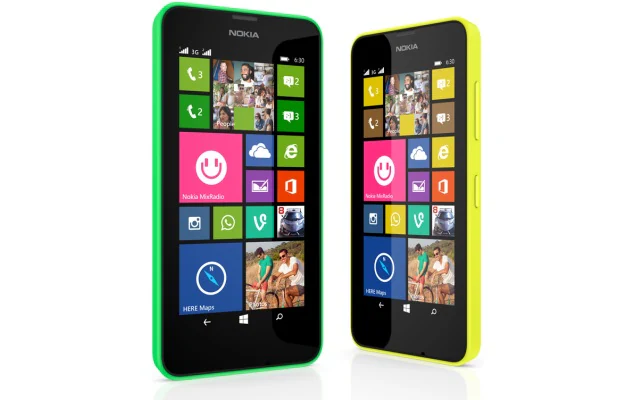
How to set up a mobile hotspot on Windows Phone
Check these steps to enable Wi-Fi hotspot on your Windows Phone device.
- Go to Settings > Internet Sharing.
- Click the edit icon (pencil) at the bottom to configure the hotspot.
- tap broadcast name Change the network name and enter the password in the field below.
- Click the check mark to complete the configuration.
- Now flick internet sharing Slider to exist.
How to set up a mobile hotspot on BlackBerry 10
Here’s how to quickly set up a hotspot on your BlackBerry 10 smartphone.
- Swipe down from the top of the screen. tap set up.
- tap Network Settings > Mobile Hotspot > Next
- You’ll see four warning prompts (data usage, monitoring users on hotspot, battery usage, and inactivity timer). tap Next every time.
- Enter the password for the Wi-Fi network you want to create. tap Next
- tap Configuration. You can now change the network name if desired.
- When finished, click save Create hotspots.
For more tutorials, visit our how-to section.
Get daily tech news, reviews, and insights in 80 characters or less on technology shout Turbo. Connect with other tech enthusiasts on our forum. Follow us XFacebook, WhatsApp, Threads and Google News for instant updates. Watch all the action on our YouTube channel.
Lava Iris Fuel 50 comes with a 3000mAh battery and is priced at Rs. 7,799
Skype for iPhone 5.7 update brings faster chat load times and more

