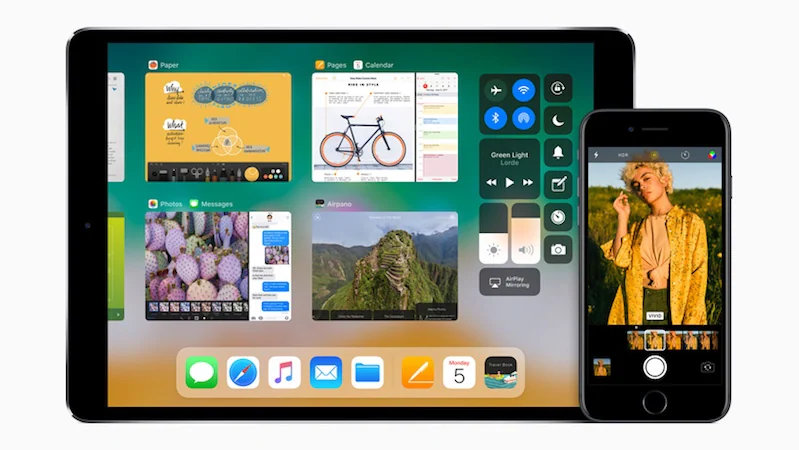
It’s that time of year when Apple releases a preview of the next version of iOS — the operating system that powers the iPhone, iPad and iPod touch. This new version is called iOS 11, and a public beta is now available for download. A large number of iOS devices support iOS 11, and this guide will tell you how to get a beta version of the operating system. Installing the iOS 11 public beta is easy, but there are some associated risks.
This beta may be unstable, which means some of the things you take for granted, like decent battery life and no random freezes or crashes, may not be the same. You may also lose all your data, so we recommend not installing this program unless you are absolutely sure of what you are doing. Even if you want to get iOS 11 early, it’s best to wait a few weeks for the beta to become more stable. You should also know that installing the iOS beta version on your primary device is a bad idea, so we recommend you install this version on your secondary device to avoid putting your data at risk.
If none of these warnings stop you from installing the iOS 11 public beta, be sure to make a complete backup of your iPhone, iPad, or iPod touch before proceeding.
With all that said, here’s what you need to know when downloading and installing the iOS 11 public beta on your device.
Which devices support iOS 11
To install the iOS 11 public beta, you need one of the following devices:
iPhone 7
iPhone 7 Plus
iPhone 6s
iPhone 6s Plus
iPhone 6
iPhone 6 Plus
iPhone SE
iPhone 5s
12.9-inch iPad Pro (2017)
12.9-inch iPad Pro (2016)
10.5-inch iPad Pro
9.7-inch iPad Pro
iPad Air 2
iPad Air
iPad (2017)
iPad mini 4
iPad mini 3
iPad mini 2
iPod touch 6th generation
If you have these devices, read on.
How to install the iOS 11 public beta
- Open the Apple Beta Software program page on your iOS device.
- If this is your first time doing this, tap Sign up and sign up for the beta program.
- If you’ve done this before, tap login instead.
- Enter your Apple ID and password. click blue login button.
- tap accept After reading the Apple Beta Software Program Agreement.
- tap Register your device at the top of the page.
- Scroll down and click on the blue Download Introduction button.
- If you’ve paired your Apple Watch with your iPhone, you’ll see a prompt asking if you want to install the beta on your iPhone or Apple Watch. tap iPhone. You won’t see this message on your iPad or iPod touch.
- Now you will see the install profile screen. click blue Install button in the upper right corner.
- Enter your password.
- You will see the consent agreement page. click blue Install button in the upper right corner.
- tap Install Again in the popup window.
- You will see a pop-up asking you to restart your device. tap Restart.
- Once the reboot is complete, go to set up > General > Software updates.
- iOS 11 Public Beta 1 will be shown here. tap Download and install.
- Enter your password.
- tap agree Click the bottom right corner after reading the terms.
- iOS 11 Public Beta 1 should now start downloading.
- After the download is complete, click Install now Load the iOS 11 public beta on your device.
This may seem very complicated, but trust us, it’s a very simple process.
For more tutorials, visit our how-to section.

