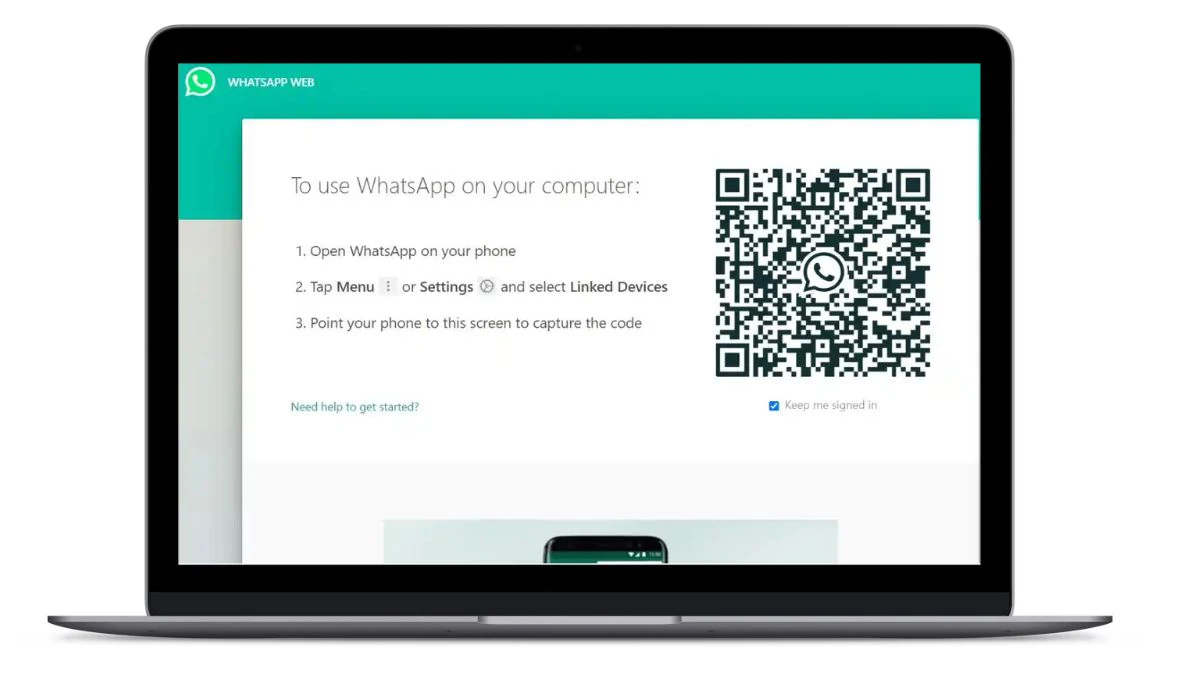
WhatsApp Web is a very useful extension for the popular messaging app that allows users to access their chats on their computer. This feature bridges the gap between mobile and desktop communications, whether for work or personal convenience. In simple steps, users can link their accounts and take full advantage of WhatsApp’s features on a larger screen. This guide provides detailed instructions, highlights features, and addresses common questions and concerns.
What is WhatsApp Web?
WhatsApp Web is the browser-based version of the WhatsApp mobile app. It mirrors your phone’s WhatsApp account, syncing all messages, contacts, and media files to your computer. This enables you to send and receive messages, share files, and access conversations in real time without relying solely on your smartphone. WhatsApp Web does not run stand-alone; it relies on an active connection to the WhatsApp app on your phone. Any action performed on the web version, such as sending a message or deleting a chat, is immediately reflected on the mobile app.
How to set up WhatsApp Web
The process of setting up WhatsApp Web is very simple. You can do this:
- Open a web browser on your computer and navigate to web.whatsapp.com.
- A QR code will be displayed on the screen.
- Open WhatsApp on Android or iOS
- Select Link Device from the Link Device menu.
- Authenticate using your device’s security method, such as fingerprint, facial recognition, or PIN.
- Scan the QR code on your computer screen. This will link your WhatsApp account to your web browser.
- Your WhatsApp chat will now appear on your computer screen, allowing you to send messages, share files, and more.
How to remove linked devices from WhatsApp Web
If you need to unlink your device from WhatsApp Web, the process is quick and easy:
- Open WhatsApp on your phone and navigate to the Linked Devices section.
- View active conversations, which will display a list of all devices currently linked to your WhatsApp account.
- Click on the device you want to remove and select Sign Out.
- This will immediately disconnect the session.
This feature is especially useful if you forget to log out from a public or shared computer.
Key features of WhatsApp Web
WhatsApp Web offers several features that make it a powerful tool for users:
- Messaging: Send and receive text messages, photos, videos, and voice messages.
- File Sharing: Easily share documents, PDFs, images and videos.
- Media Viewing: View and download media files directly on your computer.
- Notifications: Receive desktop notifications for incoming messages, ensuring you don’t miss important updates.
- Customize: Adjust settings like notifications and chat backgrounds to suit your preferences.
- Sync: Any changes made on WhatsApp Web are mirrored on the mobile app.
These features provide a seamless user experience, especially for those who frequently switch between devices.
What are the restrictions on using WhatsApp Web?
Although WhatsApp Web is very convenient, it also has certain limitations:
- Dependence on mobile devices: WhatsApp Web requires an active connection to the WhatsApp app on your phone. If your phone’s battery dies or you lose your internet connection, WhatsApp Web will stop working.
- No voice or video calls: Unlike the mobile app, WhatsApp Web does not support voice or video calls.
- Limited settings: Some advanced settings, such as account management and privacy adjustments, are only accessible through the mobile app.
- Browser dependency: WhatsApp Web runs best on specific browsers like Chrome, Firefox, and Edge. Other browsers may not provide full functionality.
Despite these shortcomings, WhatsApp Web is still a valuable tool for many users.
How to make calls using WhatsApp Web
Currently, WhatsApp Web does not offer voice or video calling capabilities. Users wishing to make calls must use the mobile or desktop app. This limitation has become a point of feedback for WhatsApp, and it is hoped that future updates may include calling functionality in the web version.
Troubleshoot connection issues on WhatsApp Web
If you’re having trouble using WhatsApp Web, consider these troubleshooting tips:
- Check internet connection: Make sure you have a stable and active internet connection on both your phone and computer.
- Restart browser: Close and reopen the browser to refresh the connection.
- Update WhatsApp: Make sure you are using the latest version of the WhatsApp app on your phone.
- Clear browser cache: Clear your browser’s cache and cookies to resolve loading issues.
- Switch browsers: If the problem persists, try using a different browser.
These steps should resolve the most common issues and ensure a smooth experience on WhatsApp Web.
Frequently Asked Questions (FAQ)
Is video or voice calling feature available on WhatsApp Web?
No, these features are currently not available on WhatsApp Web. Use the mobile app to make calls.
Can you enable dark mode on WhatsApp Web?
Yes, you can activate Dark Mode by going to the three-dot menu, selecting Settings, and then selecting the Dark theme.
How many days will WhatsApp Web remain active after logging in?
WhatsApp Web will remain active as long as your phone has an internet connection. If inactive, it may automatically log out after 14 days.
Is WhatsApp Web safe?
Yes, WhatsApp Web uses end-to-end encryption to keep your messages private. For added security, be sure to log out from a shared or public computer.
Can I use WhatsApp Web on multiple computers?
You can link your WhatsApp account to multiple computers, but only one session can be active at a time.

