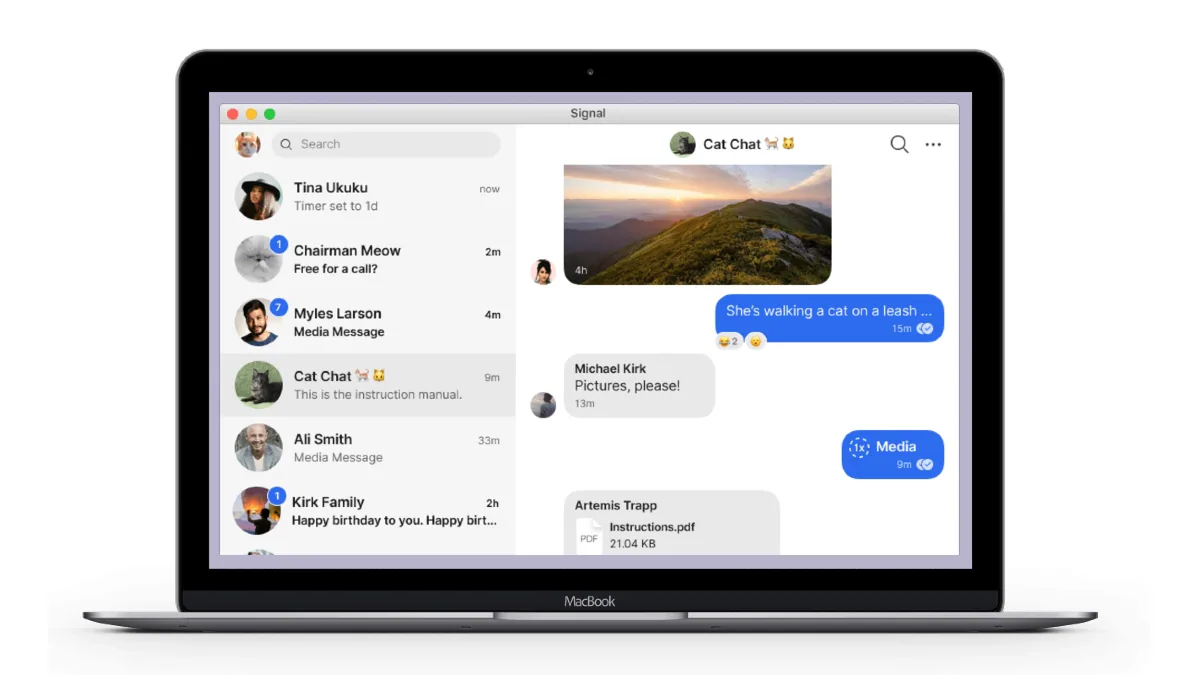
Wondering how to use Signal on your laptop or PC? If you have a Signal account, the popular messaging app will allow you to sync your account between your phone and laptop or PC in a few simple steps. Signal is becoming increasingly popular as a messaging alternative to WhatsApp. It lets you send and receive text messages and make and receive voice and video calls. It has also attracted attention for its enhanced security derived from the open-source Signal protocol. Signal also offers privacy features such as disappearing messages, screen security, and registration lock.
All these features allow Signal to compete with the likes of WhatsApp and Telegram. In fact, Signal claims that all messages you access on your laptop or PC are private.
Like WhatsApp, the Signal app must be installed on your phone (Android or iPhone). But using Signal on a laptop or PC is a little different than using WhatsApp Web. Signal does not have a web client and is limited to desktop applications. This means that you cannot use a web browser to access messages on Signal. You need to download and install its native application on your laptop or PC. Signal’s desktop app is available for Windows, macOS, and Linux platforms. It requires at least 64-bit Windows 7, macOS 10.10, or an APT-enabled 64-bit Linux distribution such as Ubuntu or Debian. Here are the steps you need to follow to start using Signal on your laptop or PC.
How to use Signal on your laptop or PC
You can follow the steps below to start using Signal on your laptop or PC. As mentioned before, it can be a Windows computer, a MacBook, or a Linux computer.
-
Install the downloaded Signal Desktop on your computer. You can download the application to your Windows laptop or PC by following the prompts in the installation file. If it’s running on macOS, you need to move Signal to your Applications folder. Linux users need to follow the on-screen instructions to configure the signal repository and install its packages.
-
Once installed, link Signal Desktop to your phone by scanning the QR code on your laptop or PC screen. To scan the QR code, you need to go to signal settings > click link device Then click the plus sign (+) Log into your Android phone or Link new devices on iPhone.
-
You can now choose a name for your linked device on your phone.
After completing the above steps, your Signal account will be synced between your phone and laptop or PC. You will start receiving messages on the Signal desktop app. You can also send messages through Signal without taking out your phone.
What are the most exciting technology releases of 2021? We discuss this on Orbital, our weekly technology podcast, which you can subscribe to via Apple Podcasts, Google Podcasts, or RSS, download the episode, or just hit the play button below.
Get daily tech news, reviews, and insights in 80 characters or less on technology shout Turbo. Connect with other tech enthusiasts on our forum. Follow us XFacebook, WhatsApp, Threads and Google News for instant updates. Watch all the action on our YouTube channel.
Report: Global laptop shipments increased by 54% in the fourth quarter of 2020, with Chrome OS experiencing the highest growth
For All Mankind Time Capsule AR app bridges the gap between seasons 1 and 2

