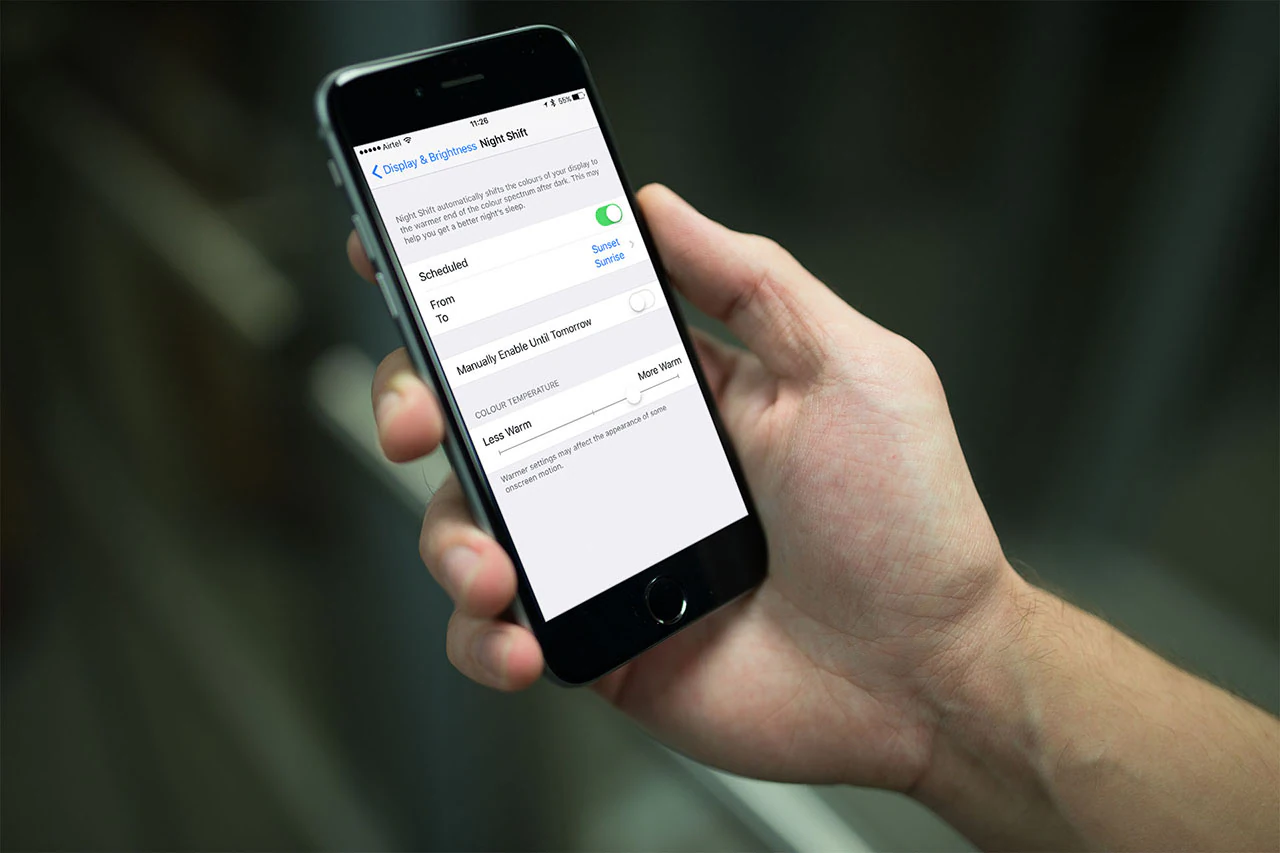
Spending a lot of time looking at screens is not good, especially near bedtime. Research shows that the blue light typically emitted by most monitors affects your body’s circadian rhythm and may cause you to have difficulty sleeping. You probably already know this.
The best way to get rid of this problem is to stay away from the screen completely. But given how much time we spend on our smartphones, that’s not very practical. Thankfully, there are some ways around this problem.
One of the most effective ways is to warm your display to better protect your eyes. Some call it “Night Mode,” others call it “Night Shift,” and of course, the way to enable it varies from device to device, so we thought we’d walk you through the most popular systems. Here’s what you need to know before you get started.
How to enable or disable Night Shift on iOS
Blue light suppression has been available as a system feature since iOS 9.3. You can find it at: set up > Display and brightness > night shift. Here you can set its schedule and adjust the color temperature to make the display more or less warm.
You can also toggle it from Control Center. Swipe up from the bottom of the screen and tap night shift.
Or ask Siri for help. Say “Night Shift on” or “Night Shift off” to control it.
How to enable or disable night mode on Android
Google first implemented the feature in Android Nougat, although many other manufacturers have integrated it into Marshmallow itself.
If you have a Nougat device, you can set up > exhibit. On the Pixel, it’s called Night Light, while on HTC and OnePlus phones, it’s called Night Mode. Xiaomi, on the other hand, calls it “Reading Mode.” The toggle is also available in the widgets panel below Notification Center.
On Marshmallow ROMs (usually phones like ASUS, Huawei, Honor, and OnePlus), there is usually a similar setting set up > exhibit.
For all other Android phones that don’t have this feature built-in, look for third-party solutions in the Play Store. Two popular ones include Twilight and Bluelight Filter, both free.
How to enable or disable Night Shift on macOS
After launching Night Shift on iOS, Apple also introduced Night Shift to macOS starting with version 10.12.4. You can manually toggle it from the Today view in Notification Center. Oddly enough, it’s somewhat hidden.
Here are the steps to enable or disable Night Shift in macOS:
- Click the Notification Center icon in the upper right corner – an icon that looks like a bulleted list.
- Scroll down to see other options – you’ll see a toggle for Night Shift.
- To customize Night Shift, go to System Preferences > monitoryou’ll see the Night Shift section on macOS 10.12.4 and later.
Siri also works on macOS, just use Night Shift on/off.
If you’re not using macOS 10.12.4 (which is still in beta at the time of publishing this guide), then you’ll need to use a third-party app, with f.lux being the most popular option. It’s free and to use it you only have to run it once and it will stay in the background.
How to enable or disable night mode on Windows 10
Currently, Windows 10 does not have a built-in blue light filter. It does have a dark mode that can be applied to all UWP apps. (It’s below set up > personalization.) For any other application, you’ll need to set it manually if available, so it’s obviously not that useful.
Thankfully, Windows 10 is getting an official blue light reduction mode with the Creators Update. After you get the Windows 10 Creators Update, go to set up > system > exhibit. The blue light toggle is the first option you see below on the right color.
Those who can’t wait for the update to roll out can turn to third-party apps that offer similar functionality. The most popular one on Windows is also f.lux.
All these solutions typically have two-stage support – you can keep it on forever, or set a specific schedule – from sunset to sunrise, or create your own schedule.
Have you ever had trouble finding night mode on your device? Chat with us in the comments below. For more tutorials, check out our how-to section.

