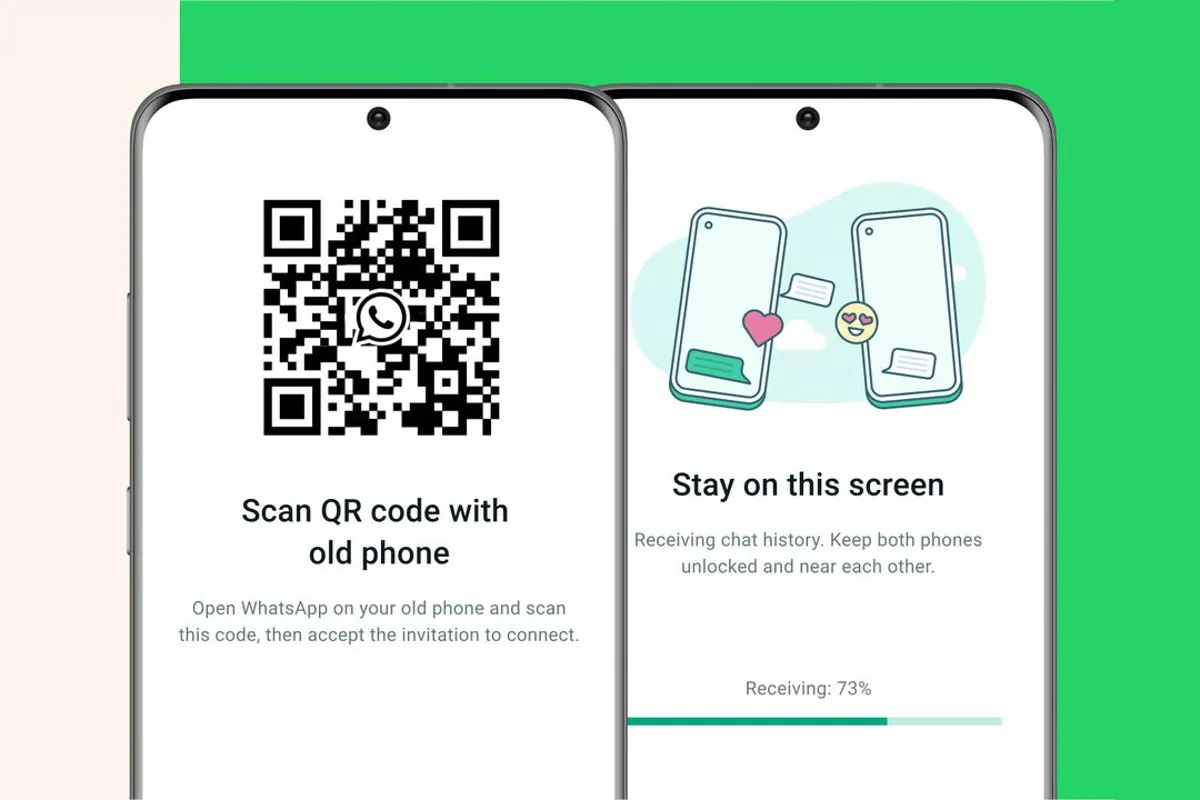
In a recent announcement, Meta is making it easier for WhatsApp users to transfer chat history from old phones to new phones without using any backup or cloud services. WhatsApp now allows Android and iOS users to transfer chat history as well as media attachments between phones running the same operating system. Although the instant messaging service already provides the option to transfer chat history, it requires backing up the chat history on storage or uploading it to the cloud.
WhatsApp’s new chat transfer feature uses QR codes to allow users to transfer most chat information such as messages as well as media files including documents, links, and videos. However, users will not be able to transmit peer-to-peer payment messages and call log details.
To transfer WhatsApp chat history via QR code, users need to ensure that both phones have the Android operating system Lollipop 5.1, or Android 6 or higher. The new phone should not be registered on WhatsApp until the transfer process is completed. Both phones also need to have WiFi enabled and be on the same network.
Likewise, for chat transfer on iOS, both old and new iPhone versions should have WhatsApp for iOS version 2.23.9.77 or higher installed.
Here’s how to transfer WhatsApp chat history on Android and iOS phones.
Transfer WhatsApp chat history on Android phone
-
Open WhatsApp on your old phone. Go to More options > Settings > Chat > Transfer chat > Start.
-
On your new phone, install and register WhatsApp using the same number.
-
choose start Transfer chat history from old phone.
-
Allow permissions and a QR code will appear. Scan this code using your old device.
-
Once you get permission to connect to your phone, the process begins.
-
After the import is complete, click complete.
Transfer WhatsApp chat history on iOS devices
- Open WhatsApp on your old iPhone and go to set up > Chat history > Transfer chat history to iPhone > start.
- Install WhatsApp on your new phone and register with your phone number.
- Select now continue Transfer chat history to iPhone.
- Use the camera on your old phone to scan the QR code displayed on your new device.
- Once the transfer is complete, set up your profile on the new device.
Get daily tech news, reviews, and insights in 80 characters or less on technology shout Turbo. Connect with other tech enthusiasts on our forum. Follow us XFacebook, WhatsApp, Threads and Google News for instant updates. Watch all the action on our YouTube channel.
Motorola Razr 40 Ultra, Razr 40 flip phones launched in India: Price, specs
Fire-Boltt Combat smartwatch and health kit with 1.95-inch HD display to be launched in India soon

