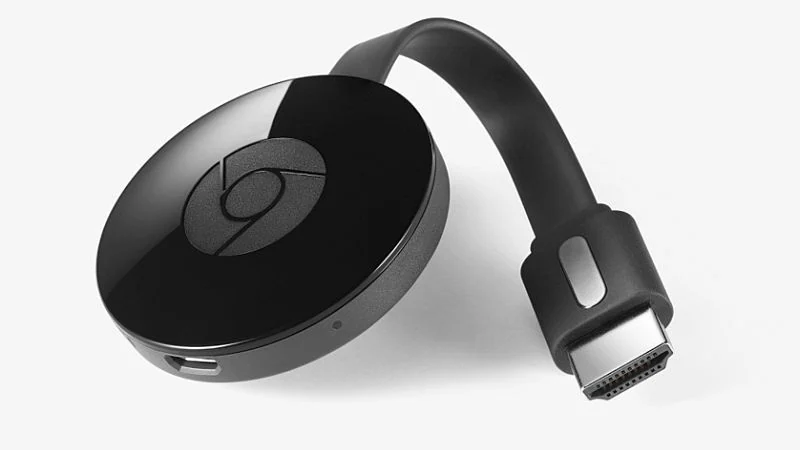
One of our favorite gadgets to have at home is the Google Chromecast – this little adapter is affordable and great if you like to display content on a big screen. The best part is, as long as you have a Wi-Fi network available where you are, you have a variety of options for displaying your videos on the big screen.
If you want to stream content from your phone to a Chromecast, whether you’re using Android or iOS, the steps are pretty simple, but what if you’re trying to get video from your laptop (or desktop) to your TV screen? There are actually a lot of different ways to do this, we tried extensions, standalone apps, etc. until we realized that the easiest way was frankly just using the Chrome browser.
Cast from the web
The easiest way to send online videos to Chromecast is to use the Google Chrome browser. Download and install it from here if you haven’t already, then read on to find out what to do next. These steps work the same on a Mac or Windows PC.
How to mirror any Chrome tab on your Mac or Windows PC to your TV via Chromecast:
- Make sure your computer is connected to the same Wi-Fi network your Chromecast is set up to use.
- Launch Google Chrome on your Mac or Windows PC.
- Click the menu button (three vertical lines or dots) in the upper right corner.
- Click throw. A pop-up box will appear.
- Click OK, got it Enable casting from a service like Hangouts, then click the Chromecast’s name to start mirroring your browser tab.
This is useful, for example, if you want to display a Google Doc on the screen. What about sites like YouTube or Netflix? On these sites, there is another option.
How to stream video from your Mac or Windows PC to your TV via Chromecast:
- Make sure your computer is connected to the same Wi-Fi network your Chromecast is set up to use.
- Launch Google Chrome on your Mac or Windows PC.
- After the video loads, you’ll see an icon for casting the video if you have a Chromecast on your Wi-Fi network. It looks like a square with three curved lines, like a Wi-Fi symbol.
- click on that streaming button and the same popup will appear.
- Click the Chromecast’s name and it will immediately start streaming to your TV.
But not all sites support this feature – for example, if you’re watching a show on Amazon Prime Video, you’ll have to mirror the tab rather than cast the video. However, this usually does not cause viewing issues.
Cast local content
It’s an easy way to stream content from your browser to your TV, but what about locally saved videos? For example, you might have a personal vacation video that you want to play on your TV screen. Doing this is also very simple, but we recommend that you install one more app. you able This was also done using Chrome, but the experience was a bit laggy for us. We tried a few apps recommended online, and this is the one we found the best – it’s very simple, very reliable, and works without any lag or other issues.
How to stream any video from your Windows PC or Mac to your TV via Chromecast:
- Install Airflow – it’s available for Windows and Mac, and it’s free.
- Start airflow.
- Drag and drop your video files into the playlist on AirFlow.
- click Mirror icon Behind the time bar in the upper right corner and select your Chromecast (if it’s not automatically selected).
- That’s it, you’re playing. If the file has multiple audio tracks, you can click the audio button on the right and select the track you want.
If you need subtitles, please click without any If you want to use downloaded subtitles, select “Load external subtitles” next to the subtitles. If not, click Search Online and Airflow will find the subtitles for you and show you options in different languages. Of course, this option won’t work with your home videos.
That’s all there is to using Airflow, it loads fast, plays smoothly, is free, finds subtitles for you, and as an added bonus (although this isn’t exclusive to Airflow), when you cast to a TV like this, your Android phone on the same Wi-Fi network will get a small cast control that lets you pause, play, and mute the stream. Just check the notification shade.
Here’s everything you need to know about casting videos to Chromecast from your PC, whether they’re online videos and web pages, or locally stored videos. If you know of any way to make this easier, please let us know in the comments.

