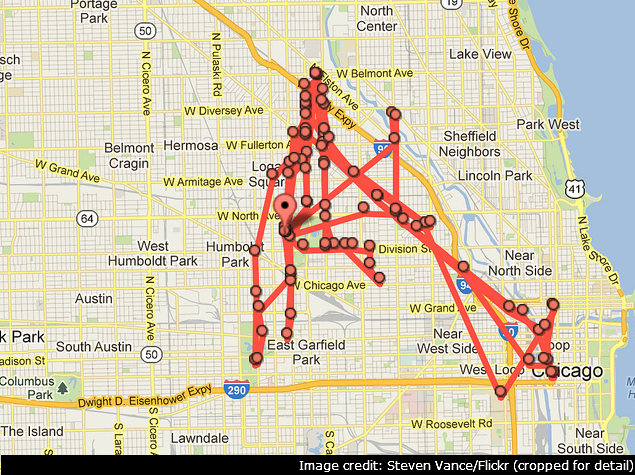
When you’re using a map app to find directions, or you want to view a location on Facebook to tell your friends where you’ve been; then location tracking is useful and seems benign. But apps and services can continually track your every move, which can be a serious privacy issue. In addition to this, this will also drain the battery faster than ideal. If you don’t want companies to track you, read this guide and disable location tracking on your device when it’s not needed.
Google
You might not know it, but Google tracks your location history unless you disable it yourself. It collects this data from your use of Google Maps. You can disable this feature or even manually delete certain places from your location history. Here’s how.
1. Go to this Google settings page.
2. Click the pause button in the “Where you’ve been” tile on the right. To remove individual entries from location history, click Manage History.
3. You can select any date from the left calendar > click to delete all history for that day. If you don’t want any location history tracked, just click “Delete All History.”
(See also: How to stop Google from tracking you on the web)
Android
Turning off location settings on your Android phone is easy, but it may affect the functionality of some useful services. Google Now, for example, relies on location data to give you the information you need without you even having to search. If you still don’t want to report your location to Google, follow the steps below.
1. Open Settings > Scroll down to Location > Google Location Settings.
2. Now tap Location Reporting > Close.
3. Go back and tap Location History > Close. You may also want to click the “Delete Location History” button below.
iOS system
Some apps and system services use your location on iOS to provide features, such as apps that are popular in your area, and even serve ads based on your location. Here’s how to disable all of these features.
1. Open Settings > Privacy > Location Services.
2. The first option is to turn location services on or off. You can turn it off to disable tracking entirely, but that means you have to perform several actions, such as manually searching for weather data.
3. Scroll down to see which apps can access location data. You can decide which apps don’t need it and turn it off for that app. If you have Find My iPhone/iPad enabled, we recommend not disabling location tracking as it may help you find your device if you lose it.
4. Scroll down to the bottom and click System Services. Here you can disable all options except cellular search to stop tracking. Click on Frequent Places and turn that off as well.
Windows 8
Disabling location tracking on Windows 8 is easy. This is how you do it.
1. Press Windows Key+C > Click Search > Enter PC Settings in the search bar > Click PC Settings.
2. Go to Privacy > Location > Let Windows and apps use my location > Turn off.
blackberry 10
BB10 OS makes it easy to prevent tracking. Just follow the steps below.
1. Open Settings > Scroll down to Location Services > Turn off Traffic Data Collection and Location-Based Ads. You can turn off location services entirely in the same place.
2. If you only want to disable location access for a specific app, go to Settings > App Manager > Tap Go to app permissions screen to change permissions for individual apps.
3. Now tap on Permissions > Select Location > Tap on any app you want to stop using your location > Close.
This should help you disable location tracking on any device. If you prefer any other methods to disable location tracking, please let us know in the comments. As always, our “How to” section (https://www.gadgets360.com/how-to/features) will help you find more helpful articles.
web browser
If you use a desktop or laptop to browse the Internet, you can disable location sharing in your web browser. Note that websites may still be able to identify your location using your IP address, but they will find it much more difficult to zero in on where you are browsing. Here’s how to disable it.
Google Chrome
1. Click the Google Chrome menu icon (three horizontal lines) > Settings.
2. Now scroll down and click on Show advanced settings >
Content Settings 3. In the pop-up window, scroll down to the Location section > Don’t allow any website to track your physical location.
Firefox
1. Type about:config in the address bar > press Enter > click I promise to be careful.
2. Search for geo.enabled and double-click it to change its value from “true” to “false”. This will disable location sharing.
opera
1. Click the Opera button in the upper left corner > Settings. Alternatively, you can use the Alt+P keyboard shortcut.
2. Click Websites on the left sidebar > scroll down to Location > select Don’t allow any website to track my physical location.
hunting trip
1. Open Safari > Preferences > Privacy.
2. Click Decline without prompting.
internet browser
1. Go to Tools > Internet Options, or use Alt+X.
2. Click Privacy > Check Never allow websites to use your physical location.
Windows Phone
There’s no place in Windows Phone where you can easily disable specific background tracking without completely disabling location services. If you don’t want to turn off location services, you can do the following.
1. Go to Settings > Swipe right to Apps.
2. Manually open each app here and disable the location option.
3. Swipe left (return to System) > WiFi > Advanced > Uncheck Send information about WiFi connections to help discover nearby WiFi.
4. Return to System > Feedback > Close. You can also go to Settings > Find My Phone > Turn Off, but this is a useful anti-theft feature that you may not want to turn off.
For more thorough options, open Settings > Location > Turn Off.
This should help you disable location tracking on any device. If you prefer any other methods to disable location tracking, please let us know in the comments. As always, our “How to” section will help you find more helpful articles.

