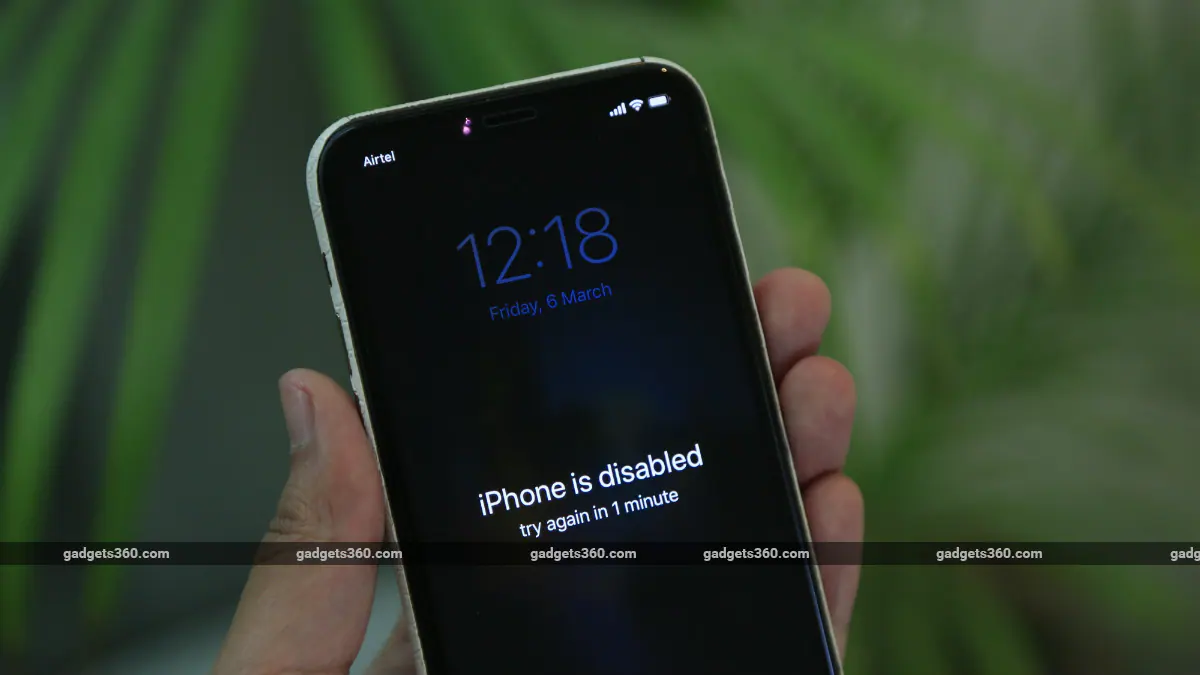
Have you ever forgotten your iPhone or iPad password? If so, you may have managed to temporarily disable your iPhone or iPad. In this guide, we will tell you how to restore a disabled iPhone or iPad. If your iPhone or iPad is disabled, then you will need to wait for a while before entering the passcode, or if you enter the passcode incorrectly 10 times, then you will have no choice but to restore it to factory settings. Either way, it’s possible to restore a disabled iPhone, but it may not always return the phone to the state it was in before it was disabled. There is a high chance that you will lose data during this process, but we try our best to avoid this.
Why is my iPhone disabled?
Before starting with these steps, let’s talk about the reasons why iPhone is disabled. When you enter the wrong passcode too many times on your iPhone, it gets disabled and you have to wait for a while before trying to enter the passcode again. For the first five incorrect password entries, you will only receive a notification that your password is incorrect. If you enter the wrong passcode for the sixth time, your iPhone will be disabled for 1 minute. After the seventh incorrect attempt, your iPhone will be disabled for 5 minutes. The eighth attempt will disable your iPhone for 15 minutes, the ninth attempt will disable it for an hour, and the tenth attempt will disable the device permanently. If you have this setting enabled in iOS, entering the wrong password 10 times will even delete all your data.
After 10 incorrect passcode attempts, your only option is to restore your iPhone to factory settings. This means that all your personal data, photos, videos, etc. will be lost, and this is a good time to remind you to back up your iOS device regularly via iCloud or computer.
How to back up your iPhone
How to restore disabled iPhone without iTunes
If your iPhone is disabled and you want to restore it without using iTunes, here is your best option.
- If your iPhone is not permanently disabled, you can enter the correct passcode and the iPhone will work normally.
- If you forget your passcode, you can follow the steps below to restore your iPhone to factory settings. This will erase all your data. Then, you can restore iPhone data from backup via iCloud or iTunes. This is the best way to recover disabled iPhone without iTunes.
How to Restore a Disabled iPhone SE, iPhone 6S, iPhone 6S Plus or Older iOS Device
-
Press and hold the power button until the power off slider appears. Drag the slider to turn off your iPhone.
-
While holding down the Home button, connect your iPhone to your computer. Continue holding the button until you see the recovery mode screen.
-
On your computer, you must find your iOS device in iTunes (Windows or earlier macOS versions), or if you have macOS Catalina, Finder. Open the correct app and click on the connected iOS device. Now click on restore.
-
On the next screen, you will receive a prompt asking if you want to restore your iPhone to factory settings. Click “Recover and Update” to continue.
-
Next, follow the on-screen prompts and Finder will automatically download new software for your iPhone. Wait for the process to complete and once completed, set up your device as a new device.
How to Recover a Disabled iPhone 7 and 7 Plus
- Press and hold the power button until the power off slider appears. Drag the slider to turn off your iPhone.
- Next, connect your device to your computer while holding down the volume down button. Continue holding the volume down button until you see the recovery mode screen.
- Now follow step 3 mentioned above.
How to Recover a Disabled iPhone 8, iPhone X, and Newer iOS Devices
- Press and hold the power button and either volume button until the power off slider appears. Drag the slider to turn off your iPhone.
- Next, connect your device to your computer while holding down the power button. Continue to hold the power button until you see the recovery mode screen.
- Now follow step 3 in Restore iPhone SE, 6S and older iOS devices above.
When you forget your passcode, you can recover a disabled iPhone through this method. Now, the best way to avoid this situation is to always remember your password. Still, no matter what, you still forgot your passcode and managed to disable your iPhone, then for a similar situation, we only recommend that you always keep the latest backup of your device. Finally, you can always come back to this article and find your own way.
For more tutorials, visit our how-to section.

