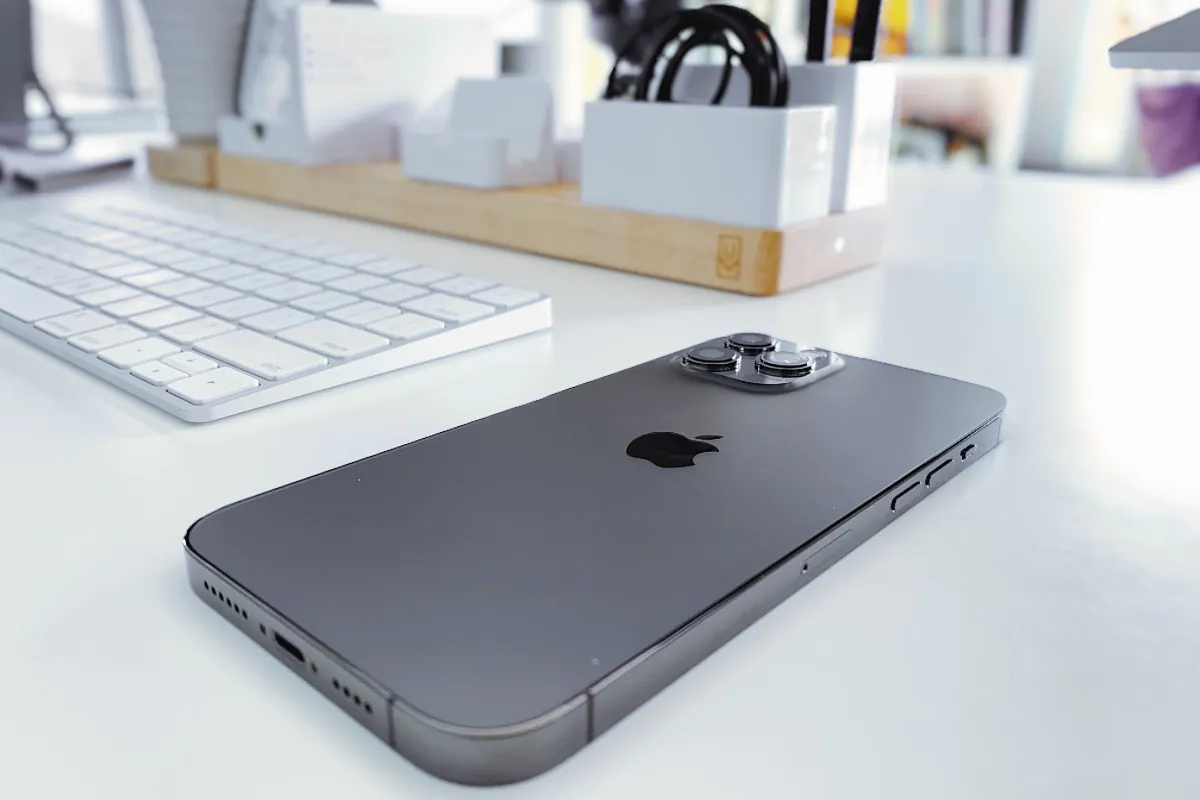
There are several ways to recover deleted text messages on iPhone. We all receive several useless text messages every day. For this purpose, most of us select multiple messages on iPhone and delete them all at once. This process can sometimes take away important information—while also deleting spam. In some cases, you accidentally delete an important text message and can’t find an easy way to restore it on iPhone.
Apple has enabled iPhones to integrate with iCloud to store backups of content, including text messages. But retrieving text from iCloud backup requires some prior knowledge. The iPhone manufacturer also does not provide a standalone option to recover deleted messages in one go.
How to Recover Deleted Text Messages on iPhone Using iCloud Backup
You can follow the steps below to recover deleted text messages on iPhone using iCloud backup. Before starting this process, it is important to point out that you need to enable the Messages feature in iCloud backup in order to restore previous text messages from the cloud.
-
Go to set up Then click on your Apple ID profile at the top.
-
Open iCloud > Manage storage > backup Then select a backup made before the date you deleted the text messages you want to recover.
-
Scroll down to find the message backup and make sure it shows some data.
-
Now, you need to reset your iPhone. This will delete all content and data stored. Therefore, you should only proceed if there is content available in the backup file containing deleted items.
-
If you are sure, please visit set up > General > Transfer or reset iPhone > Delete all content and settings.
-
Your iPhone will now restart and take some time to recover. It will then ask you if you want to restore from backup. Choose the correct backup from there.
If you don’t want to delete all content and data from your iPhone but want to recover messages stored on iCloud, you can retrieve them by logging into iCloud.com. Here are the steps on how to do this.
How to Recover Text Messages on iPhone Using iCloud.com
- Sign in to iCloud.com using your Apple ID and password.
- Go to Short message and find what you want to recover. The “SMS” option is only visible when you turn on SMS backup.
- Now you will need to close message After entering, visit iCloud settings to back up set up Then there is your Apple ID profile. You will see a list of content backed up on iCloud. Just tap message There you can turn off SMS backup.
- Now, you will be prompted to download the text messages to your iPhone locally. choose Disable and download messages from the pop-up message. This will download all existing messages – including ones you’ve deleted from your phone.
It’s worth pointing out that this option only works if your iPhone hasn’t been backed up recently on iCloud. Otherwise, you won’t be able to get your deleted messages as they will no longer be available on iCloud.com and will be replaced by new text messages you receive on your iPhone.
For those who don’t use iCloud, Apple allows backup via iTunes or Finder, depending on the operating system used on your system. In this case, you need to physically connect your iPhone. Just like the iCloud backup method, it also deletes existing content and data so you can restore older backups.
There are also third-party apps that claim to recover deleted text messages on iPhone. However, technology shout does not recommend these as they may cause privacy issues.
Get daily tech news, reviews, and insights in 80 characters or less on technology shout Turbo. Connect with other tech enthusiasts on our forum. Follow us XFacebook, WhatsApp, Threads and Google News for instant updates. Watch all the action on our YouTube channel.
Amazon’s Great Indian Festival starts tonight for Prime members: Here’s a preview of the deals

