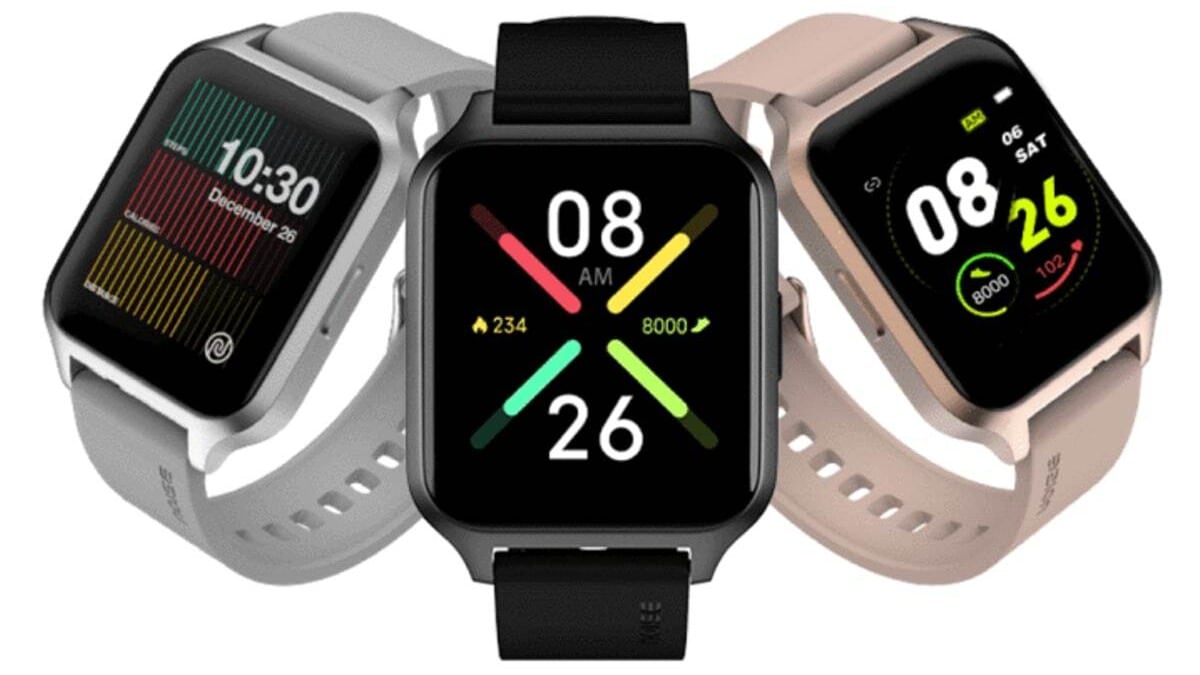
Wearable fitness trackers are a useful way to track fitness and activity levels. Customers have a variety of manufacturers to choose from, including Xiaomi, Fitbit, Amazfit, Honor and Noise, among others. Unlike most of these brands, Noise offers a few apps for specific wearable devices. Pairing your fitness tracker is easy once you have the right app. The official app also allows you to check your fitness data in an easily accessible format, update device firmware and perform other functions, depending on the Noise fitness tracker model.
In this article, we cover the steps to pair the Noise wearable fitness tracker and smartwatch with an iPhone or Android smartphone. Remember, you need the right app or pairing won’t work and the battery level needs to be above 50%, according to the company.
How to connect your Noise fitness tracker to your smartphone using the NoiseFit app
These steps work when connecting Noise ColorFit Brio, Noise Fit Agile, Noise Colorfit Pulse, Noise ColorFit Ultra, Noise Colorfit NAV+, NoiseFit Active wearable fitness tracker with your smartphone.
-
Charge NoiseFit Core until the battery level is above 50%.
-
Download the Noise Fit app on your smartphone. The app is available for Android and iOS users.
-
Open the app, grant the necessary permissions and wait for your device to appear.
-
Choose an account (Facebook, Google, or email) to log into the app.
-
Click on the blue Pairing devices button.
-
Click the device in the application list, then click Confirm(check) Buttons on the watch.
-
Enter your information into the app to continue setting up your device.
How to connect your Noise fitness tracker to your smartphone using the NoiseFit Apex app
These steps work when connecting the NoiseFit Core to a smartphone.
- Charge NoiseFit Core until the battery level is above 50%.
- Turn on Bluetooth and location features on your Android smartphone.
- Download the Noise Fit Apex app on your smartphone. The app is available for Android and iOS users.
- Open the app and select equipment tab at the bottom and click Select device.
- Select your device from the list and confirm on the smartwatch to complete the pairing process.
How to connect your Noise fitness tracker to your smartphone using the NoiseFit Peak app
These steps work when connecting NoiseFit Evolve to your smartphone.
- Charge NoiseFit Evolve until the battery level is above 50%.
- Turn on Bluetooth and location features on your Android smartphone.
- Download the Noise Fit Peak app on your smartphone. The app is available for Android and iOS users.
- Go to equipment tab and select Bind devicethen select your NoiseFit Evolve from the list.
- scanning QR code from the watch face and confirm pairing your device.
How to connect your Noise fitness tracker to your smartphone using the NoiseFit Sport app
These steps work when connecting Noise ColorFit Pro 2 to an iPhone or Android smartphone.
- Charge NoiseFit ColorFit Pro 2 until the battery charge is above 50%.
- Turn on Bluetooth and location features on your Android smartphone.
- Download the Noise Fit Sport app on your smartphone. The app is available for Android and iOS users.
- Go to equipment Tab, scroll and select Bind device and select your Noise ColorFit Pro 2 from the list.
- choose ColorFit Pro 2 and confirm.
- Open the app and click “User” and enter your information to continue setting up the device.
How to connect your Noise fitness tracker to your smartphone using the NoiseFit Track app
These steps work when connecting the Noise Qube SpO2 and Noise Colorfit Qube to an iPhone or Android smartphone.
- Charge the Noise Qube SpO2 or Noise Colorfit Qube until the battery charge is above 50%.
- Turn on Bluetooth and location features on your Android smartphone.
- Download the Noise Fit Track app on your smartphone. The app is available for Android and iOS users.
- Complete the initial user setup and enter your information, then grant the required permissions.
- Click on the green Add to button and click Noise Qube SpO2 or Noise Colorfit Qube in the list.
- Update the firmware (if available) and check the watch display for Pairing successful information.
How to connect your Noise fitness tracker to your smartphone using the NoiseFit Assist app
These steps work when connecting the Noise Colorfit Pro 3 Assist to an iPhone or Android smartphone.
- Charge Noise Colorfit Pro 3 Assist until the battery level is above 50%.
- Turn on Bluetooth and location features on your Android smartphone.
- Download the Noise Fit Assist app on your smartphone. The app is available for Android and iOS users.
- Launch the app after granting the required permissions and start the pairing process.
- choose NoiseColorfit Pro 3 Assist from the device list and confirm the request on your device.

