Have you ever needed to hand over your Android smartphone to someone else temporarily? If so, then you’re most likely concerned that they can easily browse your personal data or end up changing preferences or even deleting information like contacts or messages.
Luckily, Android 5.0 Lollipop comes with a system-level guest mode. This allows you to quickly switch to a separate guest profile that does not contain any of your personal data, such as messages, installed applications, or preferences. It’s as good as a clean install of Android 5.0 Lollipop, and all data saved in guest mode will be deleted when you switch back to your Google account. This makes it an especially effective way to let others temporarily use your phone.
Here’s how to enable guest mode on Android 5.0 Lollipop.
-
Swipe down from the top of the screen to pull down the notification shade.
-
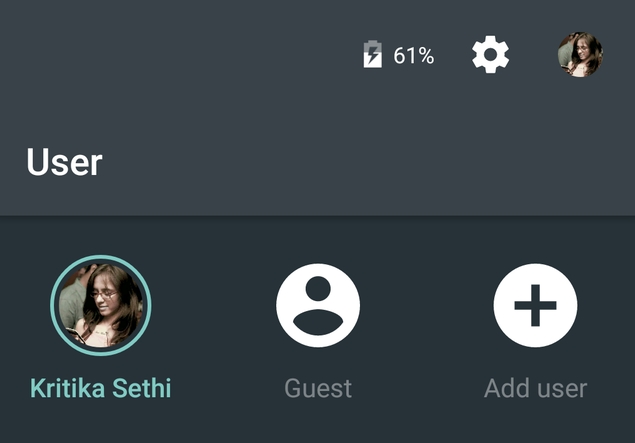
Click the avatar in the upper right corner twice.
-
Now you will see three icons – your Google Account, Add guest and Add user.
-
tap Add guest.
-
Now your smartphone will switch to guest mode. This may take some time, and the phone may be slightly slower initially, but in our testing with a Nexus 5, it was working fine after a few minutes.
-
Once you’re done with guest mode, you can easily revert back to your Google account. Follow steps 1 and 2 above, then click on the icon that says your Google Account. This will also delete all data saved in the guest session.
If your smartphone does not have Android 5.0 Lollipop installed, you should check if there is a preloaded guest mode. Some brands like Xiaomi, LG, Samsung and Huawei come with a pre-installed app that allows you to use guest mode on your smartphone. Different brands name this app differently, so look in your phone’s app drawer for an app with a name like “Kids Mode” or “Guest Mode.” Some Android phones have guest mode embedded at the system level. For example, the LG G3 has a guest mode that you can access via: Settings > General > Privacy > Guest Mode.
If your phone doesn’t have this feature, the most effective way to keep your personal data safe is to lock certain apps. We’ve written a detailed guide on how to stop others from accessing your Android apps, so be sure to check that out. If you just want to keep Google Chrome away from prying eyes, you can read our guide on enabling guest mode in Google Chrome.
For more tutorials, visit our how-to section.

