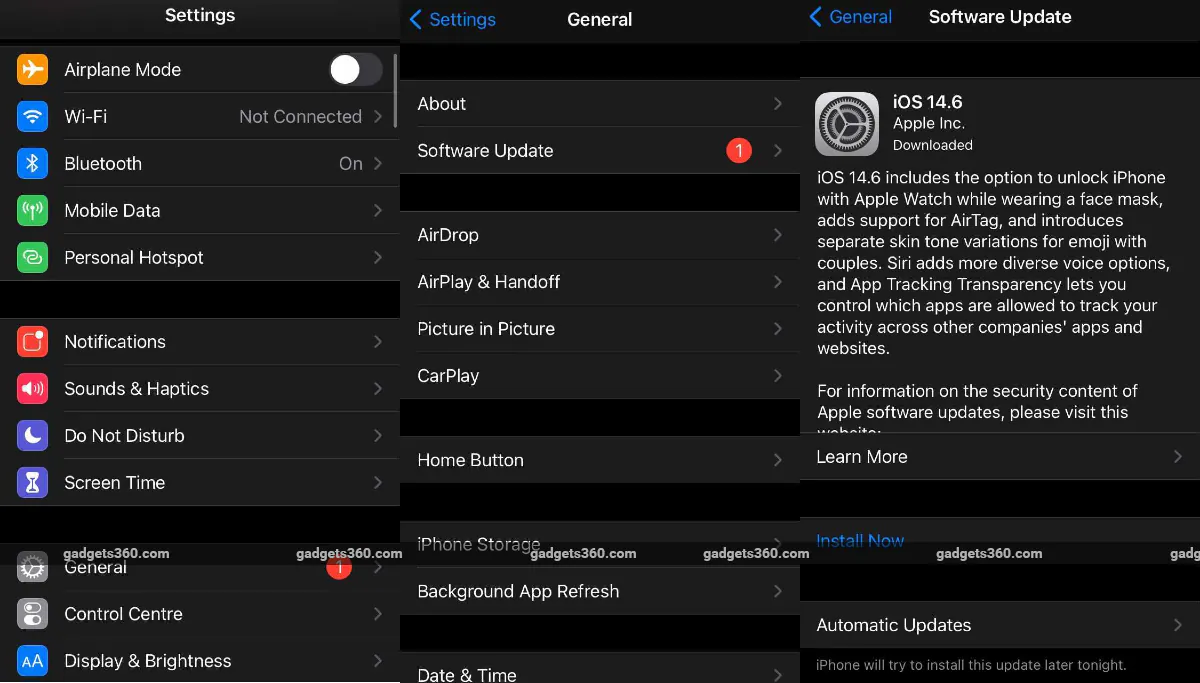
Apple launches major software updates every year at its Worldwide Developers Conference (WWDC). Throughout the year, it continues to release small updates and fixes for iPhone users. Major annual iOS updates typically bring UI enhancements, new features, and a host of bug fixes. iPhone users are advised to update their software promptly to maintain privacy and security. Typically, Apple will send out a notification when an update is rolled out to all compatible iPhones, but users can also manually check for updates and download them.
How to upgrade iPhone software
There are several ways to upgrade the software on your iPhone. The easiest way is to set it to automatic so that your device automatically updates overnight while charging. However, if you want to take control of download mode, then we have mentioned two ways to upgrade. One is the wireless method via iPhone and the other is using a Mac computer. Before we start explaining the process, it is very important to back up your data.
Update your iPhone wirelessly
-
Connect your iPhone to the charger. Make sure your Wi-Fi connection is strong and protected. Please note that this requires Wi-Fi and cannot be done over a mobile data connection.
-
On your iPhone, go to Settings > General > Software Update.
-
If a new update is available, details about the iOS update and its change log are mentioned. When satisfied, click Download and install options. Your download will now begin. Speed depends on your internet connection speed.
-
After the download is complete, click Install now. You can also click Later and select Install tonight or Remind me later. If you click Install tonightjust plug your device in before bed. Your device will automatically update overnight.
-
The iPhone may ask you to enter your passcode/password/fingerprint before starting the installation process. Enter the necessary information and the installation process will begin.
-
Once the installation process is complete, the iPhone will restart.
-
If you’re running iOS 12 or later, your iPhone can also update automatically overnight while charging. To turn on automatic updates, go to Settings > General > Software updates > Customize automatic updatesthen open Install iOS updates. Even after this feature is turned on, some updates may still require manual installation.
Update your iPhone using your computer
If the wireless method doesn’t work for you, then you can try updating using your computer. You need a Wi-Fi or Ethernet network before updating.
-
Connect your iPhone or iPad to your computer via the charging cable. On a Mac with macOS Catalina 10.15, open discoverer. On a Mac or PC with macOS Mojave 10.14 or earlier, open iTunes.
-
After the phone is loaded, click Check for updates below General or Settings.
-
Next, click Downloads and updates.
-
If asked, enter your password. Follow the on-screen instructions to guide you through the rest of the process.
Get daily tech news, reviews, and insights in 80 characters or less on technology shout Turbo. Connect with other tech enthusiasts on our forum. Follow us XFacebook, WhatsApp, Threads and Google News for instant updates. Watch all the action on our YouTube channel.
OnePlus 9R gets OxygenOS 11.2.3.3 patch update in India, fixes battery drain issue
Your data is at serious risk: Here are 6 ways to protect your data from hackers

