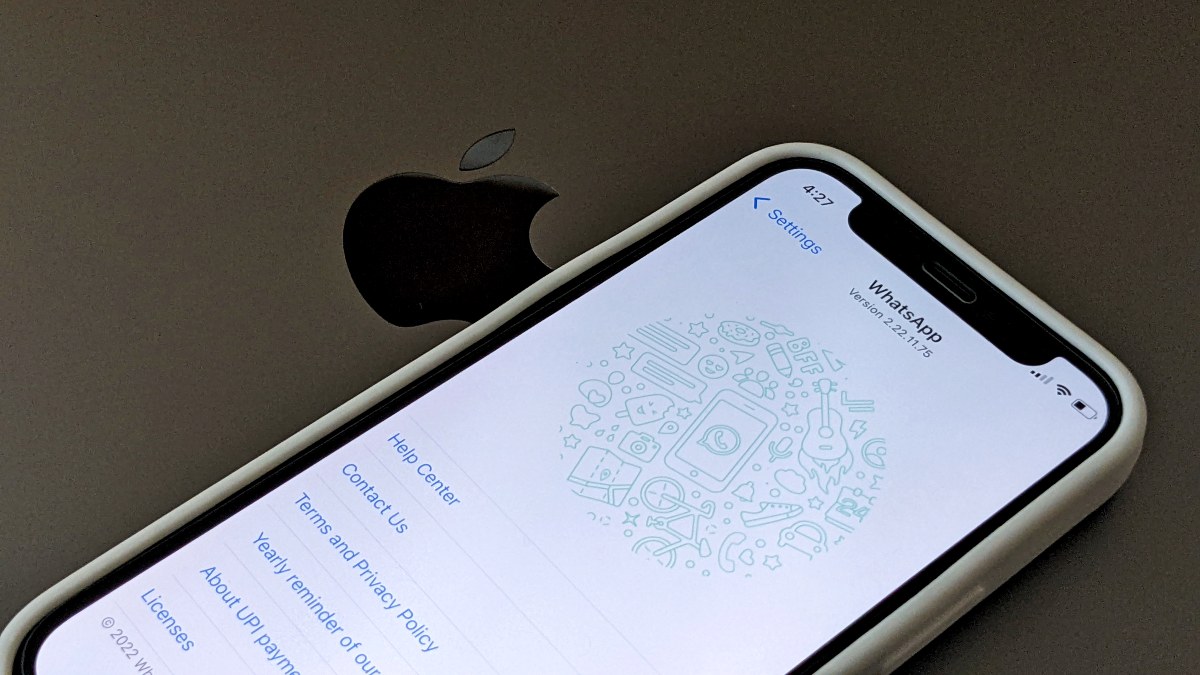
WhatsApp announced on Wednesday that its users can now transfer complete chat history from Android to iOS and vice versa. The feature was originally announced during last year’s Galaxy Unpacked event. Before this, WhatsApp users had to rely on third-party apps to transfer chats or lose them when switching. The Meta-owned platform initially offered this feature in a beta update. Unfortunately, this feature still cannot transfer your WhatsApp call and payment history.
WhatsApp officially announced the launch of the new migration feature via a tweet. The company has updated its FAQ page to highlight ways to transfer WhatsApp chat history from Android to iOS. Before proceeding with the migration, users should note a few things – their Android smartphone should be running Android 5 or higher, and iOS 15.5 or higher should be installed on the iPhone. The transfer happens wirelessly, so both your devices should be connected to the same Wi-Fi network. Additionally, it is recommended that you keep your phone connected to a power source during the migration process.
At last year’s Galaxy Unpacked event, WhatsApp revealed that this new migration feature would first be available on select Samsung smartphones. The feature was subsequently made available to the wider user base as part of a beta update.
How to migrate from Android to iPhone
-
After opening the Move to iOS app on your Android phone, follow the on-screen prompts.
-
On your Android phone, enter the code displayed on your iPhone.
-
tap continue and follow the on-screen prompts.
-
choose WhatsApp At Transfer data screen
-
tap start On your Android phone, wait for WhatsApp to prepare to export the data. Once the data is ready, you will log out from your Android phone.
-
tap Next Return to the Move to iOS app.
-
tap continue Transfer data from Android phone to iPhone and wait for “Move to iOS” to confirm transfer completion.
-
Install the latest version of WhatsApp from the App Store.
-
Open WhatsApp and log in using the same phone number you used on your old device.
-
tap start When prompted, and allow the process to complete.
Once activation is complete, you will see your chat history on your new device. It’s worth noting that the transferred data won’t be uploaded to iCloud until you create a backup. This data will remain on your Android device until you uninstall WhatsApp or wipe your smartphone.
Things to note before transferring chat history
- Android operating system Lollipop, SDK 21 or higher, or Android 5 or higher installed on an Android device
- You have iOS 15.5 or later installed on your iPhone
- Move to iOS app installed on Android phone
- WhatsApp iOS version 2.22.10.70 or higher on new devices
- WhatsApp Android version 2.22.7.74 or higher on older devices
- Use the same phone number as your old phone on your new device
- Your iPhone must be brand new or reset to factory settings to pair with the Move to iOS app and move data from an Android phone
- Both of your devices must be connected to a power source
- Both your devices need to be connected to the same Wi-Fi network, or you need to connect your Android device to your iPhone’s hotspot
Get daily tech news, reviews, and insights in 80 characters or less on technology shout Turbo. Connect with other tech enthusiasts on our forum. Follow us XFacebook, WhatsApp, Threads and Google News for instant updates. Watch all the action on our YouTube channel.
Sennheiser CX Plus SE headphones launched in India; available during Amazon Prime Day

