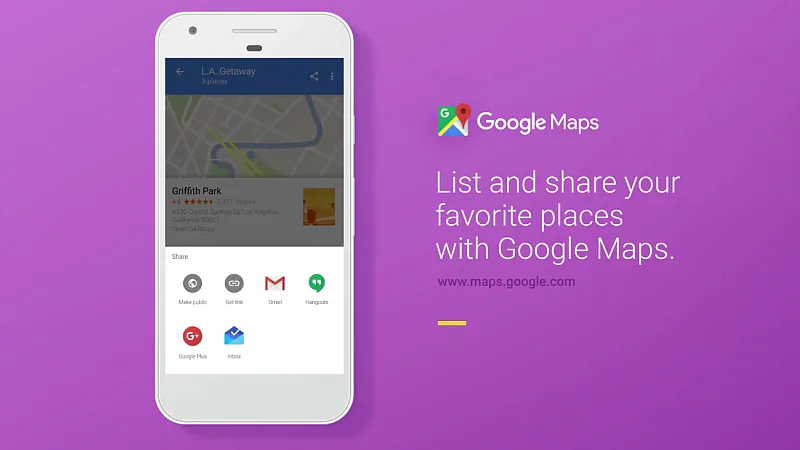
Like most people we know, we rely entirely on Google Maps to get around. Of course, like most services, Google’s navigation has its quirks – and sometimes this can be a real problem. Still, it’s an incredibly useful tool, and recently, Google announced a new feature that makes it even better — the ability to create shareable lists of places. This feature lets you mark places that your family and friends should know about.
For example, if a friend is visiting Delhi and wants to know where to find the best Old Delhi paranthas, the tastiest butter chicken and the perfect chana bathura, then you can write them a long email explaining where everything is – or just mark your picks on a map and share the list.
Why should I use Google Maps Lists?
You can always save locations on the map by “starring” them, but organizing the information isn’t easy. With lists, Google Maps makes your saved locations more useful and easier to sort. For example, take a look at our starred list, which shows 183 places around the world – this is handy if you want to see every place you think is important enough to save, but otherwise not very useful.
The new Google Maps lists feature gives you access to some predefined lists – starred places, favorites, and places you want to go. In addition to this, there is a “New List” button that you can click on to create a new list. This allows for more organization – especially since locations can appear in multiple listings at once.
For example, you can add a new restaurant that you’ve read a lot of good reviews about to your “want to go to” list, while also adding it to your customized list of fine dining restaurants. You can add Lodi Gardens to your favorites list or to a list you created called Delhi Monuments.
How to make a Google Maps listing?
Using Google Maps listings is easy. It doesn’t work on the desktop, so you’ll have to use an Android or Apple mobile device. Because Google has standardized the design across platforms, using lists works the same whether you have entry-level Android or the latest iPhone.
Creating a Google Maps listing requires the following:
- Open Google Maps – obviously.
- Pan the map to find a location to add to your list, or find it via the search bar.
- Clicking on the location displays information about the location. On a phone, a sliding menu reveals the options (on an iPad, the options appear from the start).
- Click save button.
- Now, click on an existing list, or click + new list Create a new list.
- If you selected an existing list, you’re done. If you’re creating a new list, enter a name and click create.
That’s it, you’re done. You can now repeat these steps as many times as needed to add new locations, or add the same location to multiple lists.
How to share a Google Maps list
Sharing, editing and deleting lists is just as easy. This is how it works.
How to share a Google Maps list:
- Open Google Maps.
- Swipe in from the left or press the menu button (three horizontal lines) to reveal the hidden menu.
- Click your place.
- Click saved.
- Here you’ll see all your saved listings with details about whether they are private or shared and how many locations are on the list. You can click on the list to see all entries in it, or click on the hamburger menu on the right (three dots in a vertical stack).
- tap share list to share the list, then tap continue. This generates a link that you can share – anyone with the link can follow it, so your link can be shared with friends via email or message, or posted to a Tweet for anyone to see.
- Afterwards, the list’s status will change from Private to Shared. If desired, you can click the hamburger menu again, this time clicking Sharing options. Here you can change the link from shared to private or public – public listings appear in Google search results.
With custom Google Maps lists, you can also choose to delete the list by clicking delete list In step 6. For all lists, you can also click edit list Add or remove places from the list. You can also choose to click Hide on your map – This way you can create a list of your friends without having it always appear on your map.
So far, that’s all you can do with Google Maps Lists. It’s actually a very interesting and useful feature, and worth keeping an eye on to see how others are taking advantage of it. However, we have a small problem with the feature right now – you can’t set custom colors for custom lists. This means that starred or favorited locations or locations on your “want to go” list will be highlighted on the map with a gold star, red heart, or green bookmark respectively, but all custom lists will be just a boring blue square. This means that if you have multiple listings, you can’t just look at a map and tell what’s near you.
What do you think of Google Maps’ new listings feature? How do you plan to use it? Tell us – and other readers – in the comments below.
For more tutorials, visit our how-to section.

