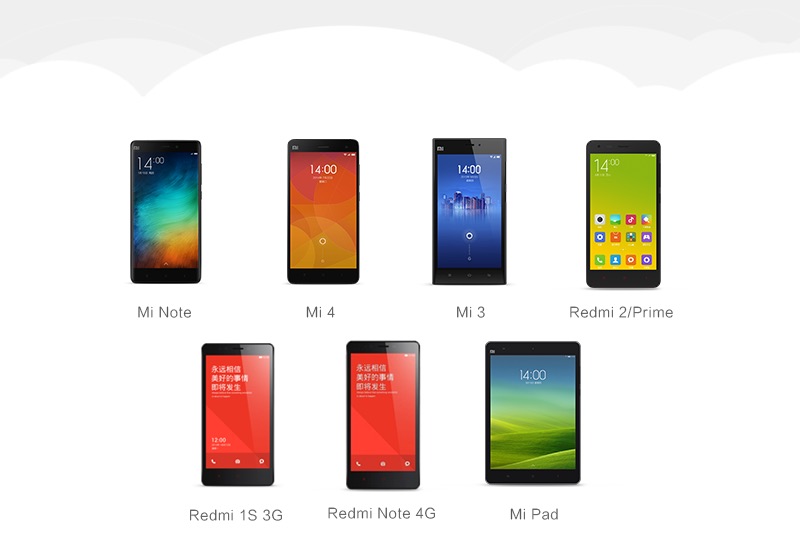
Xiaomi announced on Tuesday that it has made the global stable version of MIUI 7 available for a range of devices. The new version of Xiaomi mobile operating system can be downloaded from Xiaomi’s official forum and launched as an OTA update.
The stable MIUI 7 version is available for Xiaomi 3, Xiaomi 4, Xiaomi Note, Xiaomi Redmi 1S, Xiaomi Redmi 2, Xiaomi Redmi 2 Prime, Xiaomi Redmi Note and Xiaomi Pad. There is no word yet on when the Xiaomi Mi 4i will receive the update.
MIUI 7 is based on Android Lollipop and comes with features such as four built-in themes, daily lock screen with daily wallpaper changes, and a new mode that allows users to choose to lock apps they don’t want their children to have access to.
As for improvements, the company claims that MIUI 7 has a 30% improvement in response time over MIUI 6. Users should also find it’s battery life is light because of some tweaks to how the operating system handles background apps.
If you have never flashed your device (manually installed the ROM on your phone), you should wait for the OTA update to arrive on your phone. Users can check updater app Check on their MIUI device to see if the OTA update has arrived. If so, users should press “Update” and then “Restart now” once the download is complete to complete the installation.
Alternatively, you can follow the instructions below to install the latest version of Xiaomi for Android on your phone.
What you need to know before updating your device is that there are two versions available for your device: Fastboot and Recovery. It’s easier to update your phone with a recovery version, and it won’t wipe your existing files and settings. Fastboot requires you to download Mi PC Suite on your computer and using this method will wipe the files and settings on your device.
Users running the stable MIUI 5 or MIUI 6 stable version are advised to wait for the OTA update, or flash the full ROM in recovery or use Mi PC Suite. If users are running the MIUI 7 China Developer Edition or the MIUI 7 Global Beta, they are advised to flash the full ROM after wiping all user data as they will not receive over-the-air updates.
If you want to wipe all settings (best only if your device has some issues), you can follow the recovery mode instructions mentioned below.
Below we explain how to update to MIUI 7 using Recovery ROM, Mi PC Suite and Fastboot ROM.
How to update using recovery mode:
1) Back up all data. Save all your photos, contacts, downloaded files to your computer or to any cloud storage service you like such as Dropbox, OneDrive, Google Drive.
(See also: How to back up your Android smartphone)
2) Download the MIUI 7 version corresponding to your smartphone.
3) Rename Recovery ROM you downloaded update.zip on your computer.
4) Connect the mobile phone to the laptop using a data cable, and copy the downloaded ROM file to the root directory of the device memory. Make sure you don’t place the file in any other folder.
5) Now you have to enter recovery mode to start the installation process. There are two ways to put your phone into recovery mode:
- Method 1: Start updater app On your device, click … icon in the upper right corner and select Reboot to recover mode is entered.
- Method 2: You can also turn off your device and then press and hold Volume + button and strength Press the buttons simultaneously to enter recovery mode.
6) After entering recovery mode, you can use Volume +/- Select Up/Down, and strength button to confirm.
7) After entering recover mode, choose your favorite languagethen select Install update.zip to system one and confirm. Doing this will start the installation of MIUI 7 on your device. Wait for the update to complete, select Reboot to system oneand your device should boot to the MIUI 7 version.
How to update using Xiaomi PC Suite
This method is only available for users running the stable version of MIUI 5 or MIUI 6.
1) First, download Xiaomi PC Suite and install it on your computer.
2) Turn off the device and press the power button and volume down button simultaneously to enter fastboot mode.
3) Connect your device to your computer using a USB cable.
4) Open Xiaomi computer suite and let it find your device. then select renew. If an update is available, click Update now.
How to update using Fastboot mode:
Installing Fastboot ROM is a bit complicated, you can follow the instructions below.
1) Download the MIUI ROM flash tool from Xiaomi website.
2) Download the appropriate Fastboot ROM for your device from the link below.
3) Turn off your Xiaomi smartphone. Press the volume rocker and power button simultaneously to enter fastboot mode. Now plug your device into your Windows PC or laptop via Micro-USB cable.
4) Double-click the Fastboot ROM file downloaded to your PC in step 2 to extract it. Open the folder where the decompressed ROM is located and copy the folder path.
5) Now unzip the flash tool you downloaded in step 1. Then double-click it to install it. After that, open MiFlash.exe And paste the folder path copied in the previous step in its address bar. Click now refresh button and MiFlash will recognize your device.
6) There are three options to choose from at the bottom: Refresh All will refresh all files and erase all user data and all files in the internal storage. Flashing everything except storage will flash updated files, erasing user data, but not deleting files in internal storage. Flashing everything except data and storage will only flash updated files, user data and files in the internal storage will not be erased. To preserve user data, make sure “Flash everything except data and storage” is selected.
7) After that, click on the Flash button on the top right corner to flash the ROM to your Xiaomi smartphone.
8) Wait for the progress bar to fill up. You will then see a message next to it that reads: “The operation completed successfully.” Your device will automatically restart and install MIUI 7.

