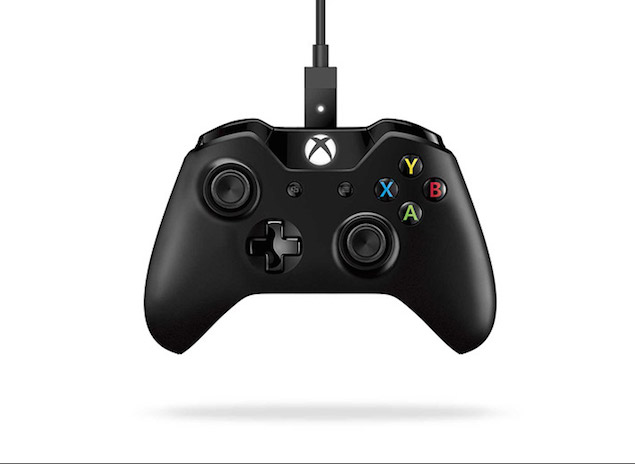
The Xbox One controller is an upgraded version of the Xbox 360 controller, improving upon an already great gamepad. 360-degree controllers are the de facto standard for many PC gamers who prefer to play without a keyboard and mouse, and with rubber analog sticks that give them much-needed grip, as well as directional pads that actually work in fighting games, the Xbox One controller is well worth picking up.
While Microsoft is working on making it available wirelessly on PC, you can easily play the game on your computer using a wired Xbox One controller.
In addition to a computer with Windows, you’ll also need a Micro-USB cable (used to charge most Windows and Android smartphones), an Internet connection to download the required drivers, and, of course, an Xbox One controller.
- Install driver
Start your computer and connect to the Internet. Download and install one of the following driver packages depending on your version of Windows: - Connect the controller
After installing the driver, plug the Micro-USB end of the cable into the controller and the USB end into your computer’s USB port. If valid, the controller will vibrate. If it doesn’t vibrate, try another Micro-USB cable and/or a different USB port.
PC drivers for 32-bit Windows
PC drivers for 64-bit Windows
That’s all you need to do to get the Xbox One controller running on PC.
Please note:
If you plan to use the same controller on Xbox One, you’ll need to resync the controller to the console. You can do this by holding down the wireless sync buttons on both the console and controller at the same time, or by connecting it to the console via a Micro-USB cable.

