You hand your phone to someone to make a call, or look up something on the internet, and next thing you know, they’re browsing your messages. Most people know better than to be so rude, but we all know a person who truly doesn’t understand why it’s such rude behavior.
Not everyone has something to hide, but now we all carry virtual records of our lives in our pockets. Our smartphones hold a lot of personal information that we don’t want others to see.
One way to protect your privacy is to set up a passcode lock on your phone. While this will serve the purpose most of the time, it’s not useful when you’re handing your phone to someone for a quick call or when they want to check something. In this case, a single-app passcode lock comes in handy. There are plenty of Android apps that let you do this, but Smart AppLock is our favorite.
You can set up a Smart App Lock to protect your apps from curious friends by:
-
Download Smart App Lock.
-
When you launch the app for the first time, it will ask you to set a password. The default password is 7777as you’ll see in the on-screen password prompt. Click on these numbers to open the app.
-
current app lock The tab will appear.
-
click green + The button is at the bottom.
-
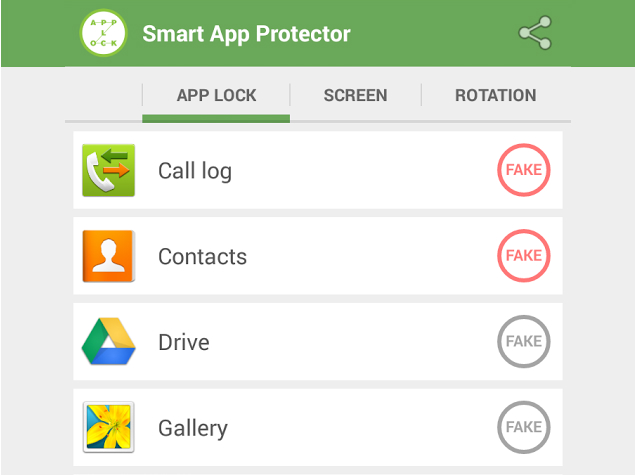
Select the apps you want to lock with a passcode. All you need to do is click the checkmark next to each app you want to protect.
-
tap Add to.
-
Next to each app, you’ll see a label labeled fake. Click this button to enable fake application crash messages. Whenever you open the app, you will see a message such as “Unfortunately, WhatsApp has stopped working.” This will display the name of the app for which you have enabled the setting. If someone sees this message and clicks OKSmart App Lock returns to the home screen. But if you click and hold OKyou will be asked to enter your application password.
That’s it. Now all the apps you choose are hidden behind a password. But it’s a good idea to change the default password, here’s how:
-
Swipe left to set up tab.
-
tap Password and pattern settings.
-
tap password and type the new numeric code.
-
tap password hint Tips for replacing default settings.
-
You can also switch to pattern lock, gesture lock or character code lock. tap Lock type switch.
This will set a common password for all the apps you choose. If you want to use a different password for any application, try the following steps.
-
Turn on Smart App Lock and swipe left set up tab.
-
tap multiple passwords.
-
tap add password.
-
Here you can select individual apps by clicking locked apps.
-
Click the checkmark next to the app you want to lock, then click Add to.
We really like Smart AppLock because it doesn’t just protect your apps. The way it does this is to prevent any unauthorized users from knowing what’s going on. This way, you can keep your stuff private without having to get into an argument with someone. Do you create passcode locks for individual applications? Let us know how it goes in the comments. For more tutorials, visit our how-to section
Get daily tech news, reviews, and insights in 80 characters or less on technology shout Turbo. Connect with other tech enthusiasts on our forum. Follow us XFacebook, WhatsApp, Threads and Google News for instant updates. Watch all the action on our YouTube channel.
The Micromax Bolt Q324 with quad-core SoC is reportedly priced at Rs. 3,990 people
Google spends $25 million to acquire .app top-level domain

