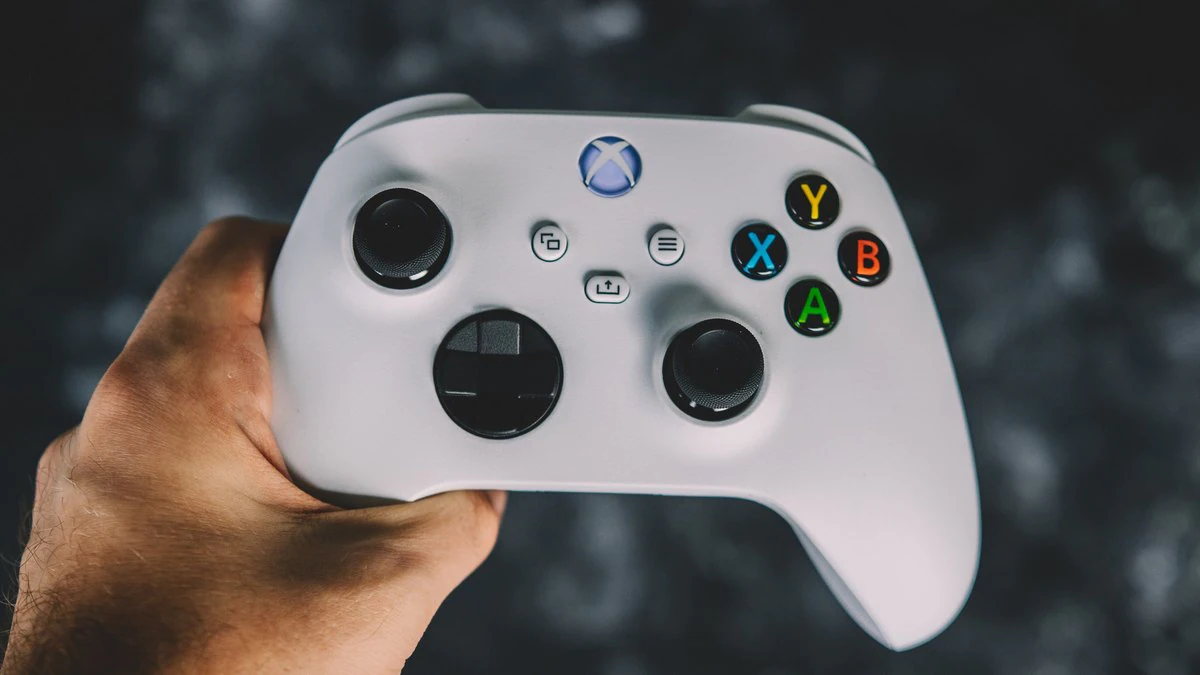
Xbox Series X and Xbox Series S launched last November, and the new consoles also come with new controllers. The Xbox Series S/ The new controller is more of an iterative upgrade from the previous generation controller, but equipped with Bluetooth functionality to connect with a variety of devices.
If you want to use your Xbox Series X/Xbox Series S controller with a computer, mobile device, or other device, you can do so using a USB Type-C cable or a Bluetooth connection. If you want to use a wired connection on an Android or laptop that doesn’t have a standard USB Type-A port, you’ll need a USB Type-A to Type-C adapter.
How to connect Xbox Series X, Xbox Series S controllers to Windows PC
-
To put your Xbox Series S/X controller into pairing mode, press and hold pairing button Until the Xbox logo starts flashing. This indicates that your controller is in pairing mode.
-
If your Windows PC or laptop has Bluetooth turned on, you should see a pop-up notification in the lower right corner that says “New Bluetooth game controller found” along with a “Connect and shut down” option. choose connect.
-
Your controller should pair with your Windows PC, and the flashing Xbox logo should now stabilize.
-
To pair manually, go to set up Click the Windows logo on the taskbar or press the Windows key on your keyboard.
-
In the Bluetooth and other devices section, click Add Bluetooth or other devices.
-
Click Bluetooth Your computer will begin searching for available devices.
-
Your Xbox Wireless Controller should appear here. Click on it to start the pairing process. Once the process is complete, your controller should be paired and connected to your Windows computer.
How to connect Xbox Series X and Xbox Series S controllers to macOS PC
- Go to System Preferences.
- Click Bluetooth.
- If Bluetooth is turned off, turn it on.
- Press and hold pairing button Until the Xbox logo starts flashing.
- Your controller should now show up in the list of available Bluetooth devices on macOS.
- click connect button next to the controller name.
- Your Xbox Wireless Controller should now be connected to macOS.
How to connect Xbox Series X and Xbox Series S controllers to Android and iOS devices
- Press and hold your Xbox controller to put it into pairing mode pairing button Until the Xbox logo starts flashing.
- On Android or iOS, go to set up.
- Click Bluetooth.
- On Android, select Pair a new device. iOS users should see the controller at the bottom of the list under “Other Devices.”
- Click on the controller to pair.
How to connect Xbox Series X and Xbox Series S controllers to Apple TV
- Open set up menu.
- choose Remote controls and devices.
- choose Bluetooth.
- Press and hold pairing button Until the Xbox logo starts flashing.
- You should see the Xbox Wireless Controller at the bottom. Select it.
- You’ll get a “Controller connected” notification in the upper right corner, which means you’re ready to use your Xbox controller with your Apple TV.
How to connect Xbox Series X and Xbox Series S controllers to Fire TV
- Go to set up.
- choose Remote controls and Bluetooth devices.
- choose game controller.
- choose Add new game controller.
- Press and hold the pairing button on the top of the controller until the Xbox logo starts flashing.
- Your Fire TV should display the Xbox Wireless Controller and serial number. Select it.
- You should receive a “Device connected” notification on your Fire TV indicating that your Xbox controller is paired and connected to the Fire TV.
Get daily tech news, reviews, and insights in 80 characters or less on technology shout Turbo. Connect with other tech enthusiasts on our forum. Follow us XFacebook, WhatsApp, Threads and Google News for instant updates. Watch all the action on our YouTube channel.
Xbox Series X, Xbox Series S, Xbox Series X Controller, Xbox Wireless Controller, How-To, Windows, macOS, Android, iOS, Apple TV, Fire TV, Microsoft
European Commission clarifies revised copyright rules amid criticism
Moto G Stylus 5G design leaked in renders ahead of launch

