Previously, transferring files from Android smartphone to Windows PC (and vice versa) used to be a tricky thing. You connect your phone to your PC via USB cable, look through the file system until you find what you want, and then copy it, hoping there won’t be any disconnects or hangs in the process. Alternatively, you can share files over Bluetooth using the slow file transfer process after first pairing the two devices. Thankfully, with the development of apps, the process of sharing files from Android to Windows devices has become easier. If you want to transfer files from your Android smartphone to your Windows desktop, we’ve listed some free apps you can try and guide you every step of the way.
How to share files between Windows and Android using free apps
Whether you want to share a single file between your Windows and Android devices, or transfer a bunch of files together, it’s very easy to get started by following these simple steps:
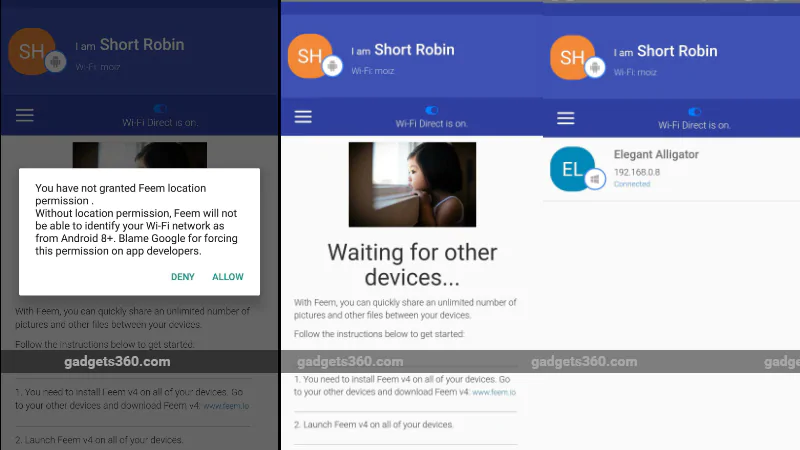
How to use Feem to share files between Windows and Android
Feem v4 app allows users to transfer files, photos, videos, audio files and applications for free. The app needs to be downloaded on Android devices and Windows devices to run. Both devices need to be connected to the same Wi-Fi network. The company claims the file transfer service is 50 times faster than Bluetooth and twice as fast as Dropbox. The free version of the app is full of ads. Those who find it annoying can pay extra for Feem Pro, which offers an ad-free experience.
How to use Feem to transfer files between Windows and Android:
- Download Feem v4 on Android devices and Windows PC from the Feem website.
- After installation, make sure both devices are connected to the same Wi-Fi network.
- The app will assign a name to your Windows PC and Android smartphone, and both will automatically appear in the Android/Windows app.
- Click on your Android/Windows device in either of the two apps.
- You can now send a single file or multiple files at once.
How to share files between Windows and Android using AirDroid
Just like Feem v4, AirDroid allows you to transfer photos, videos, files, audio, and apps between Android and Windows devices for free. It allows the selection of multiple files and can also be used to send text messages. In our tests, file transfers were just as fast as Feem. There is also an option to view all your phone files on the desktop app and save them from there.
AirDroid app also allows reading and sending text messages
Beyond that, there’s a “remote camera” mode that lets you view your phone’s camera remotely, and a “view-only” mode that lets you see what’s happening on your smartphone screen from your desktop. The free version of the app is ad-supported and only allows 200MB of data transfer per month (31 days).
How to use AirDroid to transfer files between Windows and Android:
- Download the AirDroid desktop and Android apps from the AirDroid website.
- Register on the app and log in using the same credentials on the Windows app.
- Make sure you are connected to the same Wi-Fi network.
- Your smartphone and Windows computer will have purchases under the “My Devices” section of both apps.
- You can now drag and drop/attach files to share.
How to use PushBullet to share files between Windows and Android
The PushBullet app also allows you to transfer files from your Android device to your Windows PC and allows you to send and receive text messages and view your phone’s notifications. In our tests, we found file transfers to be slower than Feem.
PushBullet allows transferring files between Android and Windows
Unlike Feem, PushBullet does not allow app sharing and is limited to files, photos, and videos. It also doesn’t have the remote camera and view-only mode found on AirDroid.
How to use PushBullet to transfer files between Windows and Android:
- Download the PushBullet desktop client and Android app from the PushBullet website. PushBullet offers extensions for Firefox, Chrome and Opera, as well as a dedicated Windows application.
- Sign in with your Google or Facebook account. Note that you must use the same account on your Android phone and Windows PC.
- The Android app will ask you if you want to view your phone’s notifications on your computer. It also displays similar SMS alerts. Click Enable or Skip depending on your preference.
- Click on the remote file on the Android app and your Windows PC will be displayed. Likewise, your Android smartphone will appear under Devices in the Windows app.
- Press the “Attach” button to send the necessary content, then press the arrow keys to send the media files to your computer.
- Check the PC application to view and download the file to your system.
How to share files between Windows and Android using the Your Phone app
The Your Phone app, launched by Microsoft in the Windows 10 October 2018 update, gives Windows users instant access to photos and texts from their Android smartphones. However, the app only allows users to access up to 25 recent photos and screenshots, and nothing else.
Your phone can transfer photos from Android to Windows, but not the other way around
It also does not allow users to send multiple files at once. Again, it only displays the most recent messages. The biggest drawback of this app is that it only allows transferring photos from Android to Windows and vice versa.
- Install the Your Phone app or Windows and Android.
- Enter your country code and mobile phone number in the Windows application. You will receive a text message with a link to the Android app.
- Use the link to download the app from Google Play.
- After installation, click “Connect to my computer”.
- Sign in with your Microsoft account on Windows and Android apps. On Android devices, allow all permissions and select “Yes” for “Ignore battery optimization” if needed.
- Open the Your Phone app on your Windows 10 computer.
- You will be able to access recent photos (including camera roll, screenshots) and text messages (SMS messages).
Other easy ways to transfer files between Android and Windows
A special mention must be made of cloud storage services such as Dropbox, OneDrive, We Transfer, Google Drive, etc. These services allow you to save files to the cloud and access them from any device, as long as you log in using the same credentials. All of these services offer a limited amount of free storage, and once you reach that limit, you can choose from various paid plans.

