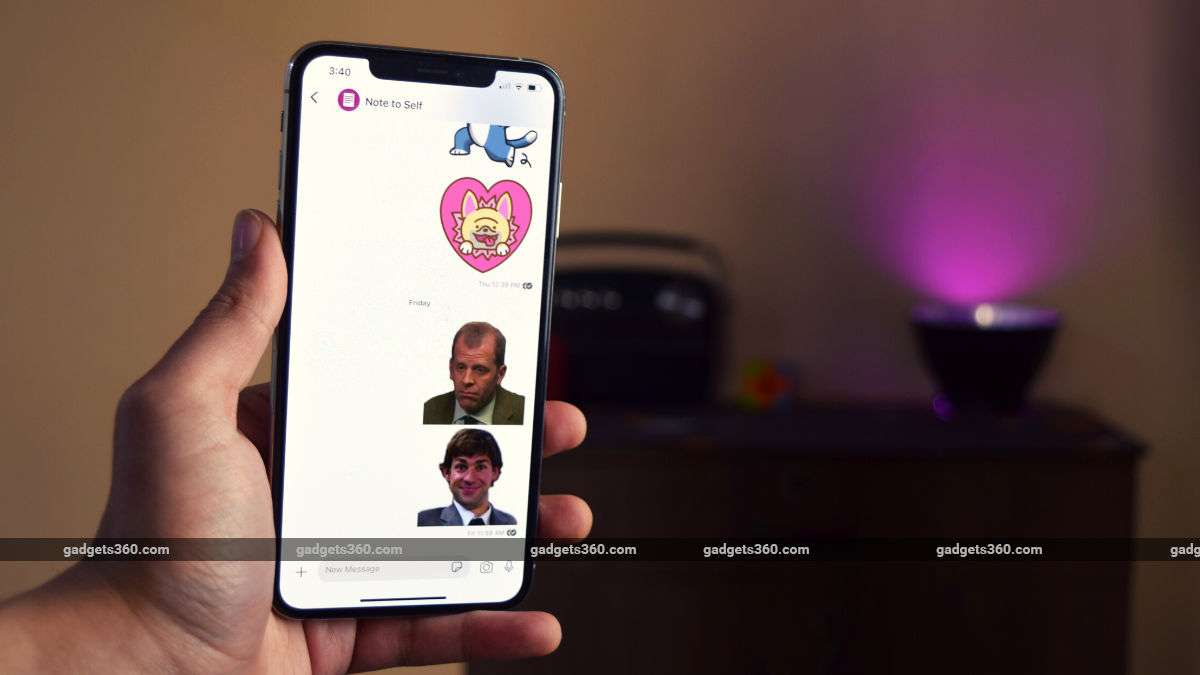
One of the most popular features of WhatsApp is the ability to send stickers. If you migrated to Signal after the WhatsApp privacy policy change, you might be surprised by how sparse the default sticker pack is. So here’s a quick guide to help you download some extra stickers or even create your own.
How to access stickers on Signal
Before we tell you how to download Signal stickers, you can first access them:
Android method
- Open Signal > Start a chat > Click on the emoji icon On the left side of the chat box.
- Click the Stickers button next to the Emoji button and you will now have access to two sticker packs by default.
Clicking on the sticker icon will also change the emoji icon on the left side of the chat box to a sticker icon. You can then tap on the sticker you want to send.
iOS method Open Signal > Start a chat > Click on the sticker icon On the right side of the chat box. Now you can find all the stickers you own and click on them to send stickers.
How to download stickers from SignalStickers.com
SignalStickers.com is a large collection of free third-party Signal stickers. Here’s how to download stickers on your smartphone.
Android method
- Open signalsstickers.com on your browser > Select a sticker pack.
- **Click Add to Signal > Install.
This will pop up a prompt asking you to open Signal, and then once you click on the sticker icon, the package will be added automatically.
iOS method
- Open signalsstickers.com on your browser > Select a sticker pack
- tap add to signal.
This will automatically add the selected sticker pack to Signal.
Alternatively, you can go to Twitter and search for the hashtag #makeprivacystick You will find the latest stickers in one place. You can then click the link in the tweet with the sticker pack and follow the same process for installing the stickers.
How to create your own signal stickers
To create your own Signal stickers, you’ll need Signal on your desktop and some photo editing skills. You can download Signal’s desktop client here.
Before making your own stickers, you’ll want to make sure:
- Non-animated stickers must be separate PNG or WebP files
- Animated stickers must be separate APNG files. GIFs not accepted
- Each sticker has a size limit of 300kb
- The maximum animation length for animated stickers is 3 seconds
- Stickers resized to 512 x 512 pixels
- You assign an emoji to each sticker
Stickers look great when they have a nice, transparent background, and if you want to learn how to get these stickers with a click, whether using an online service like remove.bg or even Photoshop, we’ve done a quick tutorial for this too, which you can find embedded below.
Once you’ve created your transparent sticker .png file, it’s time to crop and resize it. To do this we will use a website called resizeimage.net. You can also do this on other image editing apps and websites if you want. To crop and resize, follow these steps:
- Open resizeimage.net > Upload .png image.
- scroll down to Crop your image and select ‘Fixed aspect ratio below Select type > Enter 512 x 512 in the text field.
- Check Select all button > Crop image Use a locked aspect ratio.
- scroll down to Resize the image > Check Maintain aspect ratio > Enter 512×512 in the text field.
- Keep everything else the same Then click Resize image. Here you will find the link to download the png.
You can then download the final resized and cropped stickers and repeat the process until you create a sticker pack. Try saving the images in a single folder as it will be easier to upload them to Signal Desktop later.
Now it’s time to upload these stickers to Signal Desktop and create a sticker pack. to this end:
- Open Signal Desktop > File > Create/Upload Sticker Pack.
2. Choose your favorite sticker > Next
- You will now be asked to assign an emoji to the sticker. Emojis act as shortcuts to bring up stickers. When finished, click Next
- Enter title and author > Next.
You will now be given a link to the sticker pack, which you can choose to share on Twitter or with your friends. Sticker packs are also automatically added to your stickers.
For more tutorials, visit our how-to section.
Can Realme X7 Pro rival OnePlus Nord? We discuss this on Orbital, our weekly technology podcast, which you can subscribe to via Apple Podcasts, Google Podcasts, or RSS, download the episode, or just hit the play button below.

