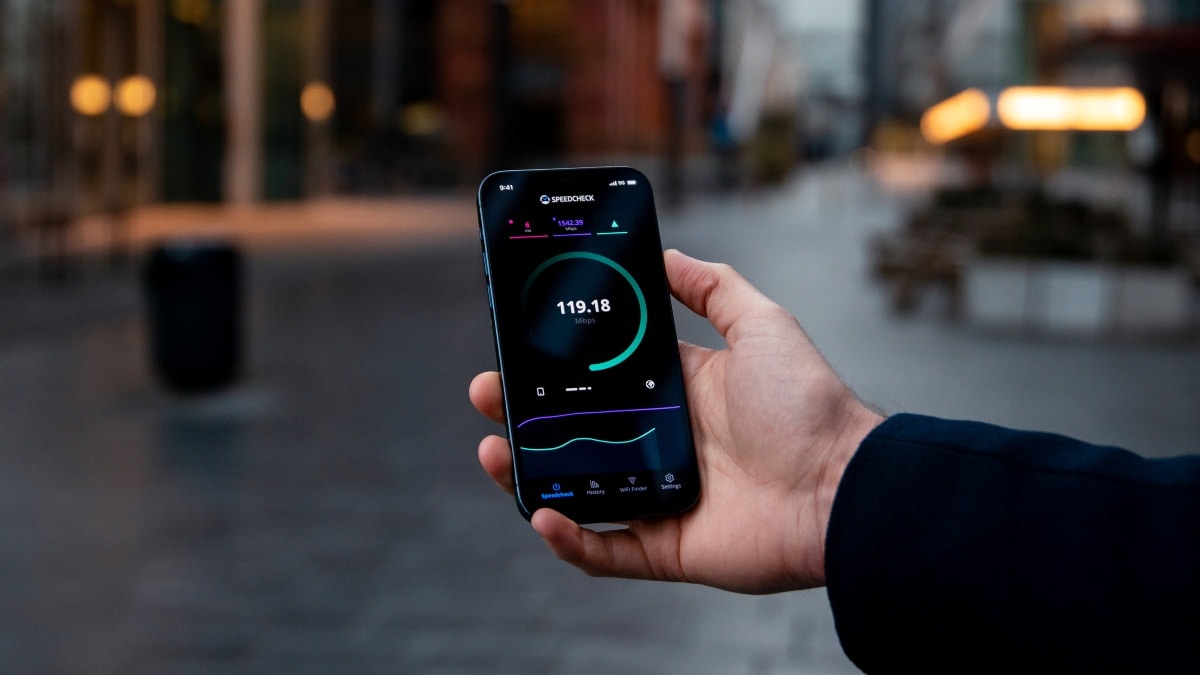
Indian telecom giant is offering “unlimited data” plans. However, there is a problem. Telecom operators like Airtel, Jio, Vi etc. have various prepaid recharge plans where customers can get huge amounts of data every day. They also offer such data services to postpaid customers. However, there is a limit, and after that limit, the speed will be throttled to a very low level as per the service provider’s Fair Usage Policy (FUP). Accessing the internet at slow speeds over a phone can be frustrating.
In this article, we have listed a few methods through which you can check the data usage on your Android phone. In the meantime, you can also check the recharge plans offered by your network operator.
How to set data spending limits on your Android phone
-
Go to set upsearch Network/SIM card/Internet. You can also enter data or data protection procedures exist set up Menu to quickly go to the desired submenu.
-
Click set up icon next to the service provider name internet.
-
Scroll down and select Data Warnings and Limitations.
-
Click Mobile data usage lifeyou will be able to set the duration of your data usage period.
-
Click Set data limits Option to enter data limits.
In some phones, such as OnePlus, you can access network settings directly without searching for the icon. Go to Data Usage > Billing Period And follow the steps above to set data limits.
Here’s how to set data limits on OnePlus smartphones
How to use data saver mode on your Android phone
Using this method, apps on your Android phone will be prevented from sending or receiving data in the background. You can manually select which apps are restricted and which are allowed to use unrestricted data, even if Data Saver is turned on.
- Go to set upthen search Network/SIM/Internet.
- search data protection proceduresand then open it.
How to turn off dual-channel network acceleration
Some smartphones, such as those from brands like OnePlus, are equipped with Dual channel network acceleration This option allows you to use Wi-Fi and mobile data to speed up downloads. Turn it off and you can save some data.
How to enable automatic updates only on Wi-Fi
Apps tend to automatically update as soon as they are connected to the internet. You can change the setting and limit it to automatically update only when your smartphone is connected to a Wi-Fi network.
- Open the Google Play app and tap on your profile picture in the upper right corner.
- Click set up Select from pop-up menu Network preferences.
- Under the submenu you will see the following options: App download preferences, auto-update apps, and auto-play videos. choose Via Wi-Fi only for all three options.
Replace data-consuming apps
Some apps use more data to load. Fortunately, some of them have lighter versions, such as Facebook Lite or Instagram Lite, that don’t require a fast internet connection to load. They allow users to perform basic functions but do not have all the features of the original version. Depending on your needs, you can explore such lighter apps to help save data.

