


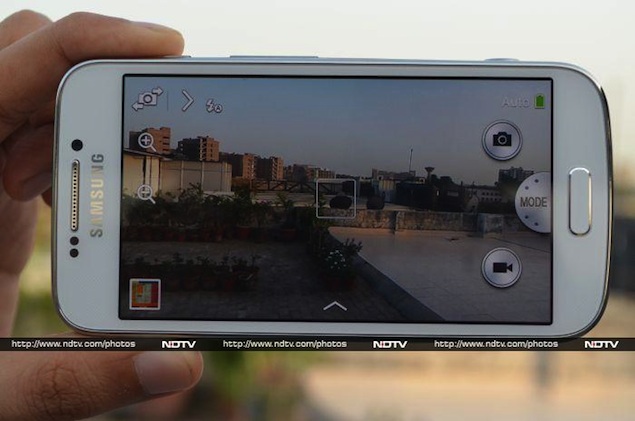
“Why would someone want to use their phone as a webcam?” This is the most common reaction people have when we tell them what we want to do, but there are actually some good reasons to do so.
First, you can turn your old phone into a security camera or baby monitor without having to buy a whole new standalone camera to use. If your phone doesn’t have a front-facing camera, or your computer doesn’t have a built-in webcam, you can use the back-facing camera on your phone to make video calls.
It’s obviously easier to buy a dedicated camera, but if you don’t want to buy a whole new webcam, or want to find a good use for your old phone instead of selling it, setting it up like this is a good idea. The setting method is as follows.
security camera
One way to use your old phone is to set it up as a security camera or baby monitor. This can be easily accomplished with the right apps for Android phones and iPhones. Here’s how you set it up:
Android
A quick search on Google Play will turn up several webcam apps. We tried 5 of the first 10 results, but most didn’t work. Judging by the lack of repeated crashes, the SmartCam cannot display video, and the DroidCam requires you to install the app on Windows in order to work.
The IP webcam is undoubtedly the best of its kind as it runs through a browser, allowing for cross-platform compatibility.
To set up a security camera on Android, follow the steps below.
1. Connect your computer and mobile phone to the same Wi-Fi network.
2. Install the IP webcam application on your smartphone.
3. Close all other camera applications. Before proceeding, force close them from the app switcher.
4. Start the IP webcam application. Scroll to the bottom and click Start the server.
5. The application will now launch your phone’s camera and display the URL. Our website address is http://172.32.15.110:8080.
6. Enter this URL into any browser on your computer and press Enter.
7. In your browser, you will see a drop-down menu next to video renderer. choose Browser.
8. Below you will see audio renderer. choose HTML audio file.
Now you will see the live video feed in your browser. You can also record this video through your browser. To do this, just press the red “Record” button below the video. This will save the footage as MP4. If you enable HTML wav audio in your browser, there will be a slight delay. You can choose flash option (not available on all computers) or open the same URL in VLC media player.
9. To do this, first download and install VLC from this website. Then in VLC, go to Media > Network Streaming Then enter the URL from the application as shown in step 5.
You don’t need to keep your phone screen on after the app is running. It works even when the phone is locked, but video input is a little smoother when the screen is on.
iOS system
The two most popular webcam apps on the App Store are EpocCam and PocketCam. We tried setting up PocketCam, but the process was too complicated, and even when we managed to set it up, we found that the free version was limited to black-and-white video and no audio. There is a paid version that gives you access to all of PocketCam’s features.
EpocCam, on the other hand, is free (with ads) and very easy to set up. That’s why we recommend using EpocCam. Here’s how:
1. Make sure your phone and computer are on the same Wi-Fi network.
2. Download the EpocCam app on your iOS device and Windows or Mac machine.
3. When you install EpocCam, it will prompt you to install some drivers. Click Anyway to install In both cases. These are audio and video drivers that allow applications to act as webcams.
4. Launch EpocCam on your iPhone and computer.
5. The application will automatically search for other devices running EpocCam on the same Wi-Fi network. Soon, videos from your iPhone will automatically appear on your computer. EpocCam lets you use only one device as a camera at a time.
While the app generally works well, we found that sometimes the phone and computer failed to connect to each other. Restarting the app on both devices quickly resolved our issue. There is no recording feature in this app, but if you want to use your phone as a security camera rather than a CCTV feed, you can easily set up a screen recorder app on your computer, such as Camstudio, to record your iPhone’s feed.
video call
You can also use your phone as a webcam to make video calls from your computer. You can use your phone as a camera to chat via Skype. This process is divided into two stages – setting up the camera on the phone, and setting up Skype to use the phone as a camera. We’ll guide you through every stage of the process.
First, you need to set up your camera using the app on your Android phone or iPhone. Here’s how:
Android
Here’s how to set up your Android smartphone as a webcam. The IP webcam does not work with Skype, so you need to install DroidCam and its PC client to use it:
1. Install DroidCam wireless web camera on your phone.
2. Download and install the DroidCam client on your computer. The phone and computer should be on the same Wi-Fi network.
3. Open the Android app and note Wireless network IP listed on the home screen.
4. Open the Windows client and paste the IP onto your computer.
5. If your Internet connection is slow, select low from Video quality drop-down menu.
6. Click start.
7. Now you will see the video from your phone on DroidCam Windows app. This feature works even if your phone is locked, but the video will be choppy. For optimal performance, we recommend that you keep Android apps open and turn off auto-lock on your phone.
8. Restart Skype (if it is open) and select DroidCam Source 1 Acts as a webcam (explained after the iPhone section).
9. Now you can use your Android phone as a webcam.
iPhone
If you have an iPhone, you can use EpocCam. Download it, then install and run the app on your computer and phone as described above. Again, both devices need to be on the same Wi-Fi network – if so, then they will automatically connect to each other. Please note that the app will stop working if you press the home button or lock your phone. EpocCam also has an Android app, but it crashed multiple times in our testing, so we recommend staying away from it.
1. Install and run EpocCam on your computer and iPhone as mentioned previously.
2. Open Skype and select EpocCam as the webcam (described below).
3. Now make a video call with any of your contacts. You’ll use your iPhone as your webcam for the call.
Change the default camera on Skype
After using your phone as a webcam (using DroidCam or EpocCam), you need to change the settings in Skype before you can use your phone as a webcam. Here’s what you need to do:
1. Download and install Skype if it is not already installed. Third-party cameras don’t always play well with the Windows 8-style Skype app, so you’ll want the desktop version.
2. Once Skype is running and you are logged in, you need to go to Tools > Options.
3. Click Video settings according to General tab.
4. Select the correct camera from the drop-down menu next to it Select webcam:. The camera’s name varies depending on the application you use to connect. Android users will have to choose DroidCam Source 1, while iPhone users will choose EpocCam.
6. Click save.
You can now make a video call using Skype on your computer, which will use the video feed from your phone’s camera.
If you use any other apps to turn your phone into a webcam, please let us know in the comments. For more tutorials, visit the “How To” section.