


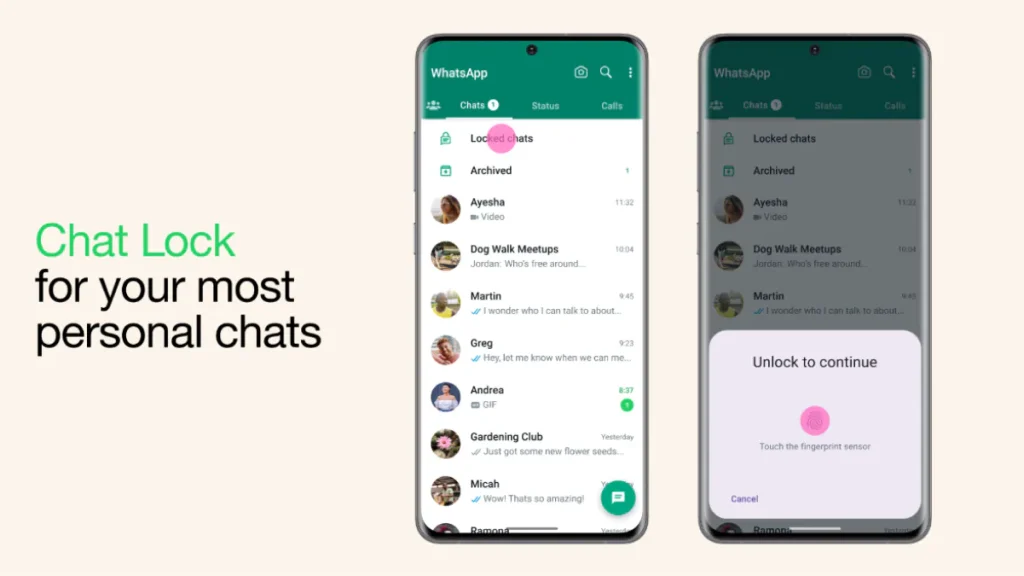
WhatsApp remains the platform of choice for millions of people around the world. WhatsApp focuses on user privacy and offers a range of features to protect conversations, one of which is the chat lock feature. The tool allows users to secure specific chats with an extra layer of protection, such as a password, fingerprint, or Face ID. This guide will walk you through the process of unlocking WhatsApp chats. We’ll also cover how to set and remove chat locks, and explore the benefits of using this feature.
What is WhatsApp Chat Lock?
Chat Lock for WhatsApp is designed to protect user privacy, allowing individuals to protect specific chats. Once locked, these chats will be moved to a separate “Locked Chats” folder, which can only be accessed through the specified authentication method. This feature is especially useful for preventing sensitive conversations, especially on shared or borrowed devices.
Main features of Chat Lock:
- Selective locking: Lock only specific chats instead of the entire app.
- Hide notifications: Hide notifications from locked chats to ensure more privacy.
- Multiple security methods: Depending on your device, you can secure your chats with a PIN, password, fingerprint, or Face ID.
Now that we understand what chat locking is, let’s start with locking chats and dive into how to use this feature effectively.
How to lock chat on WhatsApp
Before unlocking a chat, it’s important to know how to lock a chat. Chat Lock keeps your private conversations safe, here’s how to enable it:
on android
- Open WhatsApp and select the chat you want to lock.
- Click the contact or group name at the top of the screen.
- Scroll down and select Chat Lock.
- Enable the switch for “Lock this chat with fingerprint or PIN.”
- Follow the on-screen instructions to confirm your authentication method.
on iOS
- Launch WhatsApp and open the chat you want to protect.
- Click the contact or group name at the top.
- Select Chat Lock from the menu.
- Enable Face ID or Passcode Lock via the toggle option.
- Authenticate using your Face ID or password to complete setup.
Once locked, these chats will be moved to the “Locked Chats” folder and hidden from the main chat list. Notifications from these chats are also hidden for enhanced privacy.
How to unblock chats on WhatsApp
When it comes time to access a locked chat, the process is very simple. Let’s explore how to unlock chats on Android and iOS devices.
How to unlock chats on Android?
- Open WhatsApp and scroll to the top of the chat list.
- Click on the “Locked Chats” folder.
- Authenticate using your fingerprint, PIN or pattern.
- Select the chat history you want to view.
- In a locked chat, click the contact or group’s name.
- Navigate to Chat Lock and disable the toggle switch.
- Chats will now return to the main chat list without authentication.
How to unlock chats on iOS?
- Open WhatsApp and navigate to the Locked Chats section.
- Authenticate using Face ID, Touch ID, or passcode.
- Select the desired chat to access it.
- Long press on the contact name at the top to open the chat settings.
- Click to unlock chat options.
- The chat will appear in your main chat list without any locking.
How to Unlock Chat on WhatsApp?
If you no longer need to lock a chat, unlocking it is simple. Please follow these steps:
- Open WhatsApp and go to the Locked Chats folder.
- Authenticate to access locked chat list.
- Select the chat you want to unlock.
- Open a chat, tap the contact or group’s name, and navigate to Chat Lock.
- Disable the toggle switch to unlock.
Once deleted, the chat will be visible in your main chat list and can be accessed without any authentication.
Benefits of using WhatsApp Chat Lock
The Chat Lock feature offers several benefits, making it a must-have tool for privacy-conscious individuals:
- Enhance privacy: Make sure sensitive conversations are protected from prying eyes, especially on shared devices.
- Selective locking: Lock only specific chats rather than the entire application, providing greater flexibility.
- Hide notifications: Notifications from locked chats are hidden to prevent unauthorized access.
- Multiple security options: Protect your chats with a PIN, password, fingerprint, or Face ID, depending on your preferences and device capabilities.
- Separate folder: Locked chats are stored in dedicated folders, keeping them organized and invisible.
Frequently Asked Questions (FAQ)
Can you lock or mute a group chat in WhatsApp?
Yes, WhatsApp allows you to lock individual and group chats, including muting chats. The locking process remains the same for all types of conversations.
If I lock a chat, will the recipient receive a notification?
No, recipients will not receive notifications if you lock a chat. The chat lock feature is private and does not alert other participants.
How to access locked chats on WhatsApp?
To access a locked chat, go to the Locked Chats folder at the top of your chat list. Authenticate using the method of your choice (e.g. PIN, fingerprint, Face ID, etc.) to view and interact with chats.