


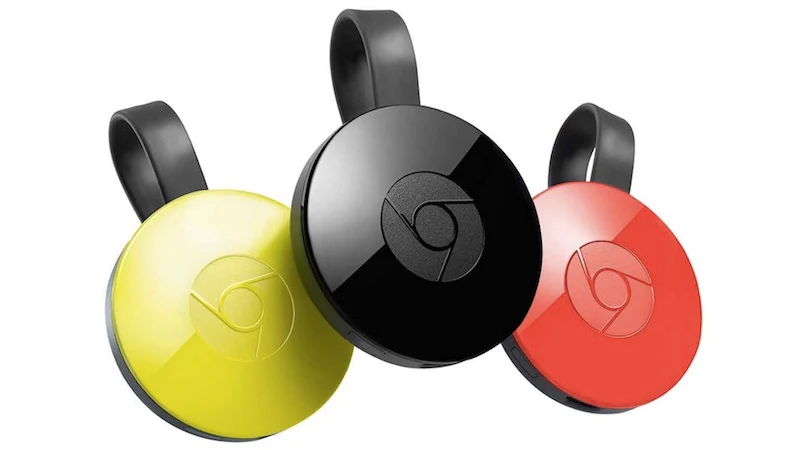
Google’s smart TV adapter Chromecast is a versatile gadget that can be used to stream video content from the internet to your big-screen TV from a variety of devices and websites. However, it works a little better if you live in Google’s ecosystem – just like Apple’s devices work better together.
Maybe that’s why mirroring your smartphone or tablet is only officially supported on Android – if you want to show your iPhone or iPad on a big screen, your best bet is to buy the slightly more expensive Apple TV. Another option is to buy Apple’s Lightning to HDMI cable, although it’s less elegant. The good news is that most media apps on iOS already support casting videos to Chromecast, so if you want to use it to play your favorite media, no problem.
How to stream and mirror content and videos from PC to Chromecast
How to cast videos from iPhone or iPad to Chromecast
If you only have one Chromecast at home, doing this is really just one step. Otherwise there is an extra step. This is how it works.
How to stream videos from your iPhone or iPad to your TV via Chromecast:
- Make sure your iOS device and Chromecast are connected to the same Wi-Fi network.
- Open a Chromecast-enabled app, such as Netflix or Youtube.
- Load the video you want to cast.
- Click cast buttona square with three curves that resemble the Wi-Fi symbol sticking out of the corner.
- If there’s only one Chromecast on the network, the video should start playing immediately. If not, you will see a list of available devices and you will have to click on the device you want to cast the video to.
As long as the app you’re using supports Chromecast. If you don’t see the Cast button, your app doesn’t support Chromecast, or your Chromecast isn’t connected to the same network.
If you want to use it to show others web pages from your mobile device, there are still some workarounds you can use and mirror web pages to a big-screen TV via Chromecast.
How to cast a web page without Chromecast video
While many iOS apps have Chromecast functionality, Safari itself does not. If you want to show people a web page where you probably have a presentation or even a video saved, you can still do that with a free app called MomoCast. This is what you need to do.
- Install MomoCast on your iPhone or iPad – it’s free.
- Make sure you are on the same Wi-Fi network as your Chromecast device.
- In Safari, click share button and click Cast with MomoCast.
- This will open the web page you’re visiting using MomoCast’s browser, which has a cast icon in the upper right corner. Click on the Chromecast’s name to connect.
- Click the cast icon again, then click Mirror screen Start streaming. This will display a web page on your device, which can be used to display presentations, PDF files, or even just show photos from Instagram to friends.
- Click the Cast icon again, then click disconnect End stream.
How to transfer videos and mirror screen from Android to Chromecast
How to mirror your iPhone or iPad’s display to your TV via Chromecast
That’s all well and good, but you may ask, how to mirror your iPad or iPhone screen to your TV. Well, the short answer is – you can’t. But there’s a slightly (okay, highly) complicated workaround that actually works. The way it works is you connect Airplay Mirroring from your phone or tablet to your computer, and then use Chrome’s desktop mirroring through your PC. There are many apps you can use to complete the first part, but while most are free to try, you must pay to continue using them. If spending some money isn’t an issue, then we recommend Reflector, which seems to be the most popular and best judging from reviews and user reviews. However, for the purposes of this guide, we found a free app called LonelyScreen that also works very well.
How to mirror your iPhone or iPad display to your TV via Chromecast:
- Make sure your iOS device, PC, and Chromecast are all connected to the same Wi-Fi network.
- Install LonelyScreen on your PC – it runs on Windows and Mac and is free.
- On your PC, launch Chrome, go to the menu and click throw.
- Click the arrow next to project tothen click Mirror desktop. Then, click on your Chromecast name.
- Okay, now your desktop is displayed on the TV screen. The next step is to put the iOS device on the desktop.
- Run lonely screen. You can click lonely screen text to change the server name, or keep it.
- Now, on your iPhone or iPad, swipe up from the bottom to reveal Control Center, then tap Play image.
- Click lonely screen (or any other name you might have given your server) to start mirroring your screen.
- Click on the LonelyScreen window and maximize it.
Your mobile display will now be mirrored to your desktop, and the same content will in turn be mirrored to your Chromecast and TV. There’s staggered latency – you do something on the iPad and it takes a bit of time to be reflected on the PC and a bit of time to be reflected on the big screen, so watching a movie isn’t that useful, but if you want to demo an app or show off a presentation, it might be a good option.