


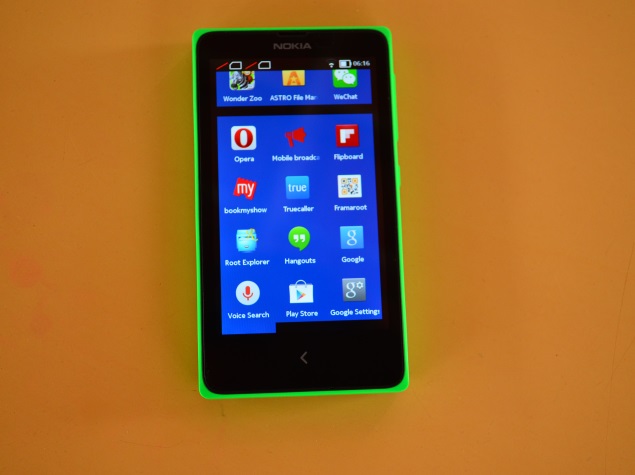
(See also: Nokia X dual SIM card review)
Nokia X is based on the Android Open Source Project (AOSP) and powered by Microsoft and Nokia Services. Nokia uses the AOSP version corresponding to Android 4.1 Jelly Bean as the baseline for its operating system. The highlight of the Nokia X is a highly customized version of Android with a Metro-style UI and access to Nokia’s own app store. While it doesn’t have access to Google’s Play Store, Nokia offers sideloading of Android apps from any third-party source: 1mobile market, SlideME market, Aptoide and Yandex Store.
However, it is possible to install Google Play Store on Nokia X through rooting. This means granting root access to the user’s phone. Rooting the device gives you the ability to run apps that require access to certain system settings, as well as the ability to flash custom ROMs to the phone, which can actually add extra functionality. Before you begin, please note that unlocking the bootloader or rooting process will void your device’s warranty. What’s more, the rooting process can brick your device if you make any mistakes, so be careful while performing these steps.
(See also: How to install WhatsApp and other apps on Nokia X from “unofficial” sources)
Method one–
Get root access to Nokia X:
In order to run Google apps, you need to root your Nokia X by following these steps –
– Users will need to enable USB debugging on the Nokia X, which can be found in the Developer options in Settings. You have to tick the USB debugging box to successfully perform the rooting process.
First, you must enable USB debugging. To do this, first go to your phone’s Settings > Developers and tick the “USB Debugging” box.
– Next the user has to download Farmaroot.apk to Nokia X or Windows PC (Transfer it to Nokia X). Use the automatic installer to install the root tool on your Nokia X phone.
First, go to the Farmaroot.apk folder in your Nokia X > Click on the .APK file, it will start automatically installing the app on your phone, follow the instructions.
(If files are transferred from PC to Nokia X, users can search for the required files on the phone through the ASTRO file manager pre-installed on the device.)
Once Farmaroot is installed on your Nokia X, select the app icon in the app drawer to install SuperSU. To install, open the SuperSU file and select the Gandalf exploit, which is a drop-down option in the Farmaroot application.
Once the installation is complete, a success message will pop up on the screen. Now you just need to restart your Nokia X to complete the rooting process successfully.
– The Farmaroot app on Nokia X also provides the option to unroot the device if you want to get your device back to normal.
Install Google Play Store on Nokia X:
– Download the Google Services APK from here onto your Nokia X or Windows PC and copy the APK to your phone using a USB cable.
First, visit this link to install the Google Services APK to your phone or Windows PC. Transfer all Google APKs to Nokia X using USB cable.
– Now, you will need to extract all Google APKs. To do this, first download the Root Browser app on your Nokia X, which is a file manager for root users.
Go to the folder where you saved the Google APK and select all files; next select the option Extract All from the menu. The extracted APK file will be automatically stored in the SpeedSoftware folder of the microSD card. At this stage, do not install the APK.
-The extracted files must then be moved to the /system/apps folder of your Nokia X. (Using the root explorer application, go to the SpeedSoftware folder on the microSD card. Select the file and select Cut from the menu. Then, go to the /system/apps/ folder and select Paste from the menu.)
– Next, you have to change the permissions of all the extracted files in the /system/apps folder by selecting all the extracted files (Google APK) and turning on the “Permissions” option in the menu of all apps. When you press “Permissions” the “Owner”, “Group” and “Other” options should have “Read Only” checked in the popup. Only the owner should check the “Write” option. After changing the permissions of all extracted Google APK files, restart your Nokia X to make the device more stable.
– You can now find Google app icons like Hangouts, Gmail, and Google Play Store in the app drawer.
Enjoy, you have successfully installed Google Play Store and other Google services on your Nokia X. Now log in to your Google account to access Google services on Nokia X, and explore your favorite Android apps directly from the Play Store.
This method worked on earlier versions of the Nokia X software, but once you upgrade to version 11.1.1, new security features do not allow the use of this technique. If you updated your phone, there’s a new way to help.
Method 2–
If the above method doesn’t work due to new security restrictions, you can do the following:
– In addition to installing Framaroot.apk on Nokia X, also install Nokia Composite ADB Interface on your Windows PC (follow the steps detailed above).
The Nokia Composite ADB Interface folder installed on your PC should have two sub-folders named KingoRoot_NokiaX_Mod and Nokia X USB Driver.
– Connect your Nokia X to your Windows PC using a USB cable, open Device Manager and right-click on the connected device. This will provide an “Update Driver” option on your Windows PC to install the ADB driver.
You may be prompted for a new driver for Nokia X, which can be found in the Nokia Composite ADB Interface folder – Nokia X USB Drivers. Just select Browse, go to the folder and select the driver.
– Now you need to open the KingoRoot.exe file on your Windows PC, which can be found in the Nokia Composite ADB Interface folder. Please note that you need to keep your Nokia X connected to your Windows PC during the entire process.
– Once you launch the KingoRoot application on your PC, it will appear on your Windows PC screen giving you the option to root the connected device. When the phone is not rooted, KingoRoot on the PC displays the status of the connected device as not rooted.
– Now users need to select Root button in KingoRoot application on PC to root the device. This will also automatically install the SuperSU app on the connected Nokia X device. This will take a few minutes.
– Restart your phone after the connected device (Nokia X) status in KingoRoot app shows “Rooted on your PC”. After restarting, open the SuperSU app on your Nokia X, this will be used for the request grant option on the app. Press Grant and move on.
– After pressing Grant, open KingoRoot again on your computer. This time KingoRoot displays two options – Root again or Remove Root. To restore your phone to normal, you can click “Remove Root”.
– Now you can repeat the method of installing Google Play Store on Nokia X (check method 1) by extracting all Google APKs using Root Explorer.
*notes– We recommend that you install the Google Play Store and other services on your Nokia X running version 10.0.3 instead of updating the phone to software version 11.1.1. This is because the new method requires the KingoRoot app to be installed on the PC, and the steps are a bit complicated compared to the Framaroot app we had that worked well on the Nokia X.