


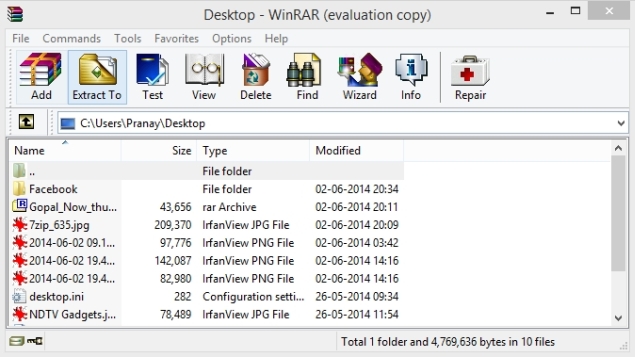
If you’ve ever received an email with a rar or zip file attached but weren’t sure how to open it, this guide can help clear up your doubts. These are two popular compressed file formats used to reduce the amount of space a file takes up – handy when you want to send mail or retain data for long-term storage.
Even if you know how to open them on your computer, you may find it a bit difficult to open them on your phone or tablet, but with the right software, you can do it easily no matter what device you use. On Mac and PC, software like WinZip and WinRAR make it easy to open a variety of archives, but they’re not the easiest tools we’ve found. Read on to find out the easiest way to unzip your archive:
Windows
Opening zip files on Windows is easy. If you are using Windows 7 or 8, the operating system can open zip files without any software. Opening rar files requires a free tool called 7-Zip. After installing 7-Zip, follow these steps to open the rar file:
1) Right click on the rar file you want to open.
2) Select “7-Zip > Unzip File”.
3) In the pop-up box that appears, select the folder where you want to extract the compressed file and click OK. If you select “Extract here”, the files will be saved in the folder where the archive is stored.
operating system
To open rar files on Mac OS X, install a free rar extractor application such as RAR Extractor Free. After installation, follow these steps:
1) Right click on the rar file and select “Open with”.
2) Now select RAR Extractor Free from the program list. This will automatically extract the contents of the compressed file into the directory where the rar file is located.
After you open an archive once using “Open With”, subsequent archives can be unzipped by double-clicking the file.
iOS system
Due to iOS restrictions on file system access, opening compressed files is not simple. Most apps will require you to pay to access cloud storage services like Dropbox. However, there are some ad-supported free applications, such as Zip & RAR File Extractor Free, that allow you to open compressed files. Here’s how to do it.
1) Open the application containing your rar file. If it was sent via email, open your email application. If it’s in the cloud storage app, open it.
2) Click on the zip or rar file you want to open.
3) Depending on the application, you will see a pop-up menu asking you which application you want to use to open the file, or you will see an error message stating that the application cannot open the file.
4) If you see the latter, click the Share button (the box with the up arrow).
5) This will display the menu mentioned in step 3. Here, select “Open in Zip Extractor” to open the compressed file.
6) Click Extract to view the files in the rar file.
Android
Extracting compressed files on Android is very easy. Here’s how you can do this quickly.
1) Install the free RAR Android application.
2) Open the application and navigate to the folder containing the rar file. To find your SD card, click on the “Three Books” icon in the upper left corner.
3) Once you find the rar file, just click on it to open it.
blackberry 10
While there are many apps on BlackBerry App World that can open rar files, the two free apps we tried didn’t actually open these files. Fortunately, BlackBerry 10 users can install Android apps – we recommend installing the Amazon Appstore to simplify the process.
1) Go to Amazon and follow the instructions to download and install the App Store.
2) Now, install Easy Unrar from Appstore and open the application.
3) If you got the rar file as an email attachment, clicking on the file will open it in Easy Unrar.
4) If the file is on your phone, open Easy Unrar and go to the folder containing your file.
5) Check the rar file you want to open and click “Open Archive”. Now select the files you want to extract and click “Extract”.
Windows Phone
Microsoft’s Windows Phone has a free application that can help you open rar files. Please follow these instructions to open them.
1) Install Archiver from Windows Phone Store.
2) After installing the application, it will open all rar files in email attachments whenever you click on them.
3) You can also open the application to open the downloaded rar file. Swipe left to log in to SkyDrive and open rar files stored in the cloud.
This is how you can open RAR files on any device for free. Did you find this useful? Do you have any other apps you like to use to open RAR files? The comment area is open to everyone, welcome to speak freely.