


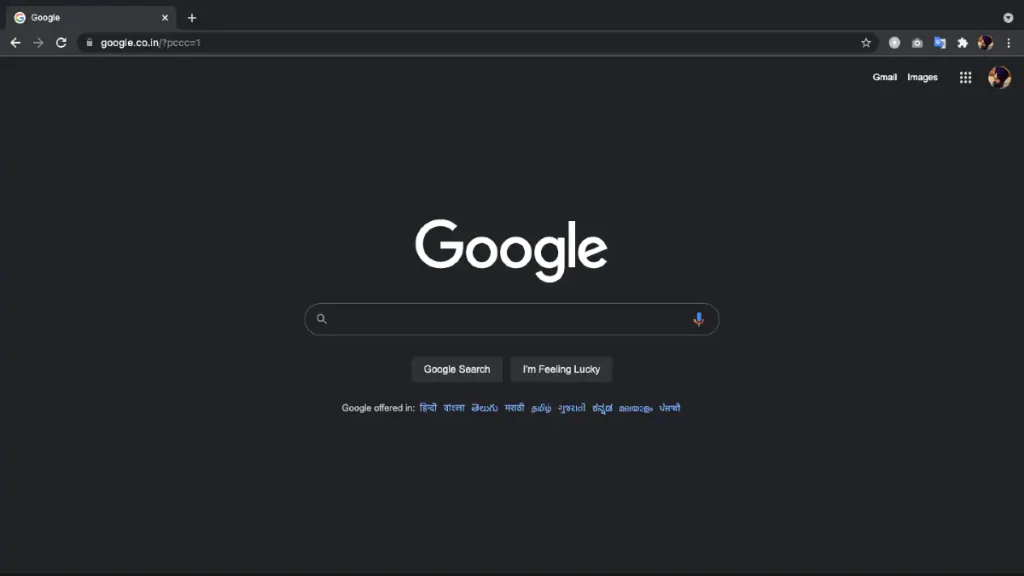
Google Chrome has a feature called Dark Mode (or Dark Theme on Android devices) designed to provide a comfortable web browsing experience in low-light conditions. It changes the interface and elements including the homepage, toolbars, and settings to a dark color scheme to help reduce eye strain. It also helps extend battery life, but if you’re using a device with an OLED display, that’s more of a page case. Users on Android smartphones and iPhones, as well as Windows and Mac computers, can enable dark mode on the Chrome browser in just a few simple steps.
Since 2019, Chrome has offered a dedicated dark mode across devices. It’s coming to macOS first, followed by Android, Windows, and iPhone users.
In this article, we’ll detail the steps to enable Dark Mode on Chrome – whether you’re using an Android phone, iPhone, Windows or Mac computer.
How to enable Chrome dark mode on Android
Before you learn the steps on how to enable dark mode on Chrome when using an Android device, it’s important to note that your device must be running on Android 5 or higher and support dark theme. Here’s how to enable this setting:
-
Open Chrome from your Android phone.
-
Click More (the three-dot menu button) in the upper right corner of the screen, then set up > theme.
-
choose dark Enable dark mode.
You can follow the same steps and select Light There is an option to return to the light theme. Likewise, when you select system default options.
How to enable Chrome dark mode on iPhone
You can enable dark mode on Chrome on iPhone by turning on system-wide dark mode, available starting with iOS 13. The specific operation method is as follows.
- choose dark Options come from set up > Display and brightness.
- Open Chrome to view dark mode.
If you enable system-wide dark mode through the iPadOS settings menu, Chrome will also apply its dark mode on iPad by default.
How to enable Chrome dark mode on Windows PC
To turn on Chrome’s dark mode on a Windows PC, make sure the device is running Windows 10.
- choose start and then set up > personalization.
- Go to color then select dark Set as default application mode.
- Now open Chrome to experience dark mode.
How to enable Chrome dark mode on Mac
Apple offers a system-wide dark mode on Mac devices running macOS 10.14 and later. You can use this update to start using Chrome in dark mode on your Mac computer.
- Click the Apple menu, then System Preferences.
- Now, go to General and select dark as an appearance preference.
- Open Chrome to see its dark mode.
In addition to dark mode, Chrome also displays a dark homepage when you’re in incognito mode. You can detect if you are in Incognito mode or have Dark Mode enabled by looking at the toolbar on your browser, which displays an Incognito mode icon next to the address bar when Incognito mode is enabled on your browser.