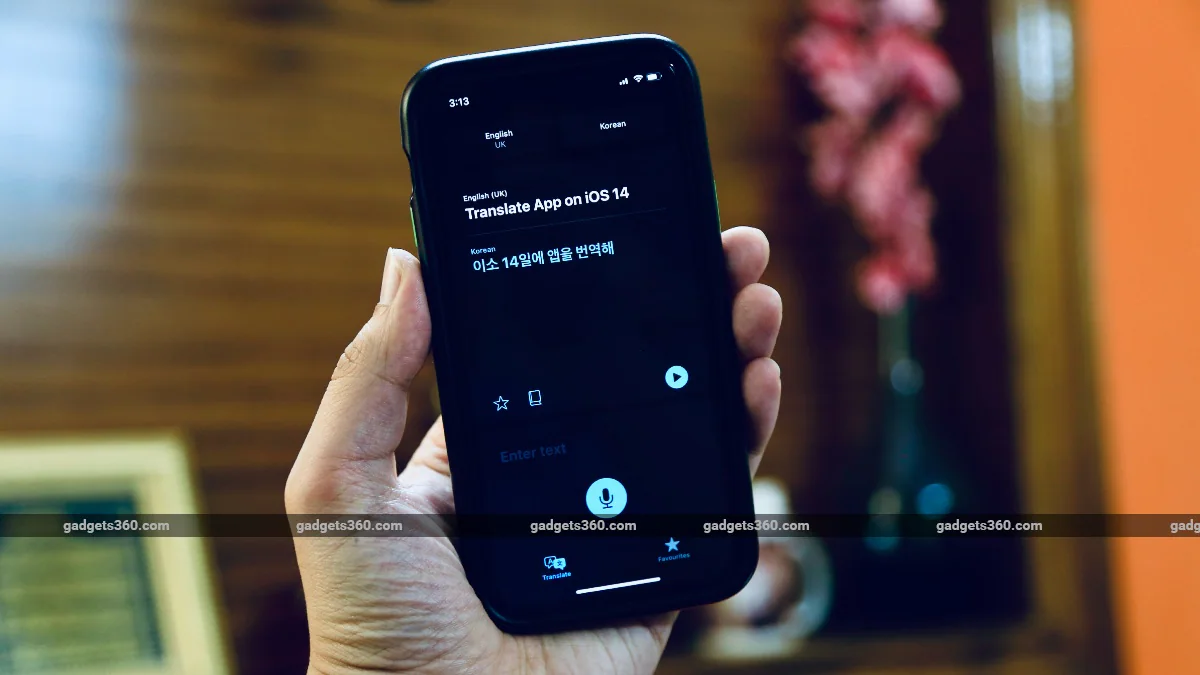
One of the biggest new features in iOS 14 is the built-in translation app, which Apple simply calls Translate. While Siri does have the ability to provide translations, the results are nowhere near as good as dedicated translation apps like Google Translate. However, this has changed with the advent of Apple’s new Translate app, which offers a variety of features such as traditional translation, conversation mode, multi-language support, and more. Follow this guide and we’ll tell you everything you need to know about the new Translate app in iOS 14.
iOS 14: Translate app supported languages
After updating your iPhone to iOS 14, the Translate app is automatically pre-installed. To check the supported languages in the translation app, follow the steps below.
- Open the Translate app and tap one of the two rectangular boxes at the top to open the list of languages. Scroll down to view the list.
- A total of 12 languages are currently supported. they are Arabic, Chinese, English (US), English (UK), French, German, Italian, Japanese, Korean, Portuguese, Russian and spanish. Unfortunately, Indian languages are not supported yet, but hopefully these will be added in the future.
- Scroll down further and there’s also a list of available offline languages, i.e. languages you can download for use when you don’t have an internet connection.
- To download a language offline, click the small download icon next to a specific language.
- A check mark next to a language indicates that the language has been downloaded and is available for offline use.
- Finally, scroll down to the end of the list and there is an “Automatically detect” option. Enabling it will make the translation app automatically detect spoken languages.
iOS 14: How to translate text and speech
The Translate app for iOS 14 lets you translate text and speech. First, let us tell you how to translate text, please follow the steps below.
- Open the app and tap the boxes at the top to select two languages.
- Click Enter text Field > Choose from a language > Start typing.
- When finished, click go Display the translated text on the screen.
To learn how to translate speech using a translation app, follow the steps below.
- Open the app and tap the boxes at the top to select two languages.
- Click microphone Under the “Input” text field, then start speaking in one of the two selected languages.
- When finished, pause and let the app stop recording. The translated text will appear on the screen and you can click Play Icon plays translation loudly.
Additionally, you can save the translation by clicking Star icon and mark it as a favorite for future use. Translations marked as favorites can be accessed by clicking the Favorites tab at the bottom.
iOS 14: Conversation mode in Translate apps
One cool feature of this new app is the ability to translate conversations and speak them for you as soon as you finish speaking them. To learn how to do this, follow the steps below.
- Go to control center and make sure Portrait orientation lock Disabled.
- Open the Translate app > Select two languages by tapping the boxes at the top > Rotate your phone sideways.
- You will now see the Translate app’s conversation mode on your iPhone display. Just tap microphone and start speaking in one of the two selected languages.
- Once completed, you will automatically hear the translation. You can click the play icon to listen to the translation again.
For more tutorials, visit our how-to section.
Are Apple Watch SE, 8th generation iPad the perfect “affordable” products for India? We discuss this on Orbital, our weekly technology podcast, which you can subscribe to via Apple Podcasts, Google Podcasts, or RSS, download the episode, or just hit the play button below.

