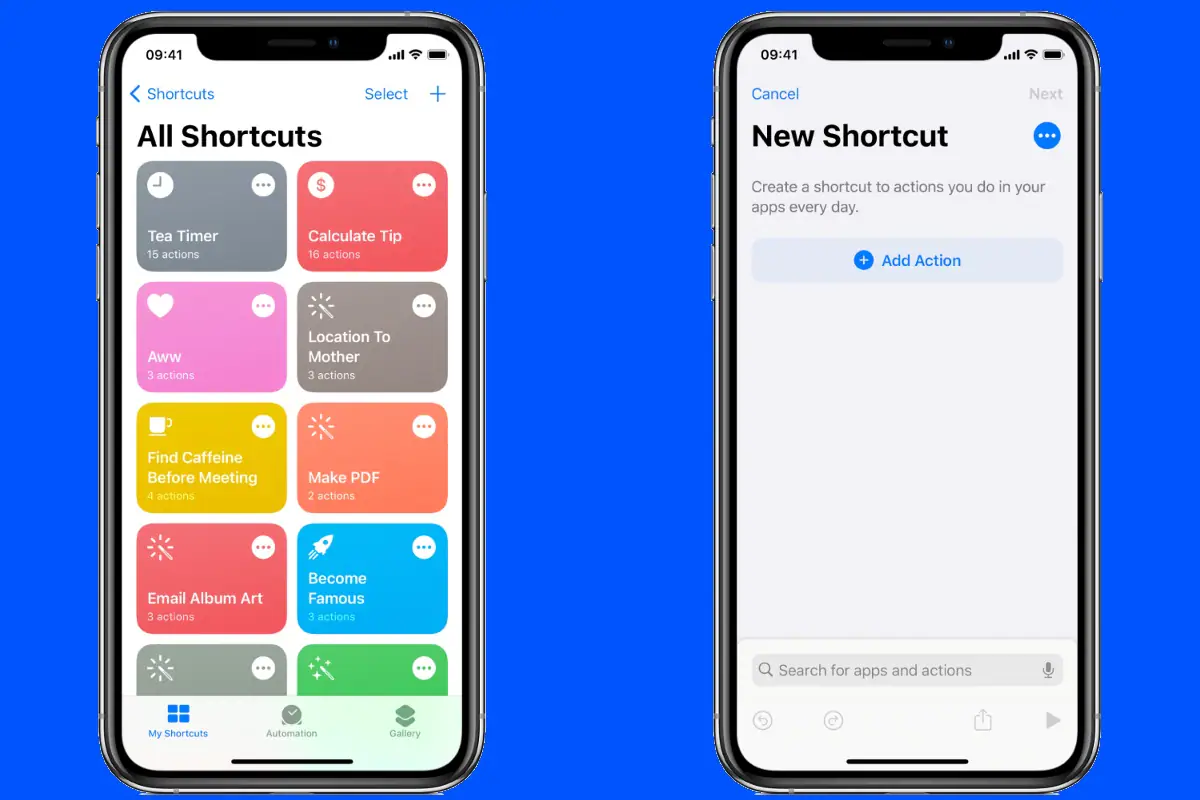
Looking for a way to create shortcuts on your iPhone to automate certain tasks? Apple provides a dedicated Shortcuts app that comes pre-installed on all iPhone models running iOS 13 and above. Just use this app to create shortcuts that let your iPhone perform certain actions automatically in a sequence. These can be actions you want Siri to perform after receiving a voice command, or features you want enabled at a specific point in time.
The Shortcuts app is an independent upgraded version of Siri Shortcuts. It was launched with the release of iOS 12 in 2018 and aims to make users’ operations easier. It can be used to create automated workflows, such as creating a morning schedule, generating an expense report after completing a recent purchase, or finding a nearby coffee shop before heading home.
Apple provides a collection of preset shortcuts from which you can choose the one you want. Alternatively, you can create your own shortcut as per your requirements. Here’s how to do it.
How to create shortcuts on iPhone
To create a shortcut, you must make sure your iPhone is running at least iOS 13. Apple provides a dedicated Shortcuts app by default. However, if you uninstalled the app for some reason, you can download it from the App Store.
-
Open the Shortcuts app on your iPhone.
-
Click the plus sign (+) button in the upper right corner of the screen.
-
Now, hit Add action Select the action you want to take.
-
Your iPhone will now show you a list of available apps and actions. It also suggests actions based on your iPhone usage.
-
The app will show you the selected action on the New Shortcut screen. You can edit the actions of your choice by clicking on any highlighted action.
-
Press the plus sign (+) button to add another action. It’s important to note that by default, your previous actions will be displayed on the screen. However, you can view all available actions by clicking the Close button.
-
After completing the required actions, you can test your workflow by pressing the “Play” button.
-
Now, click Next and enter a name for the custom shortcut.
-
according to complete Save your shortcut.
Saved shortcuts will appear in the My Shortcuts section of the Shortcuts app. You can also copy a saved shortcut or delete it with the gesture of holding down that specific shortcut. Additionally, you can reorder the shortcuts to match your priorities.
You can also add shortcuts to widgets for easy access directly from your home screen. Apple also lets you share your favorite shortcuts with anyone so they can use the same automated workflow on iPhone without having to manually add the steps you follow.
Get daily tech news, reviews, and insights in 80 characters or less on technology shout Turbo. Connect with other tech enthusiasts on our forum. Follow us XFacebook, WhatsApp, Threads and Google News for instant updates. Watch all the action on our YouTube channel.
Euro 2020 schedule, groups, venues and how to watch globally
Samsung Galaxy A30s, Samsung Galaxy A20 get Android 11-based One UI 3.1 update: Report

