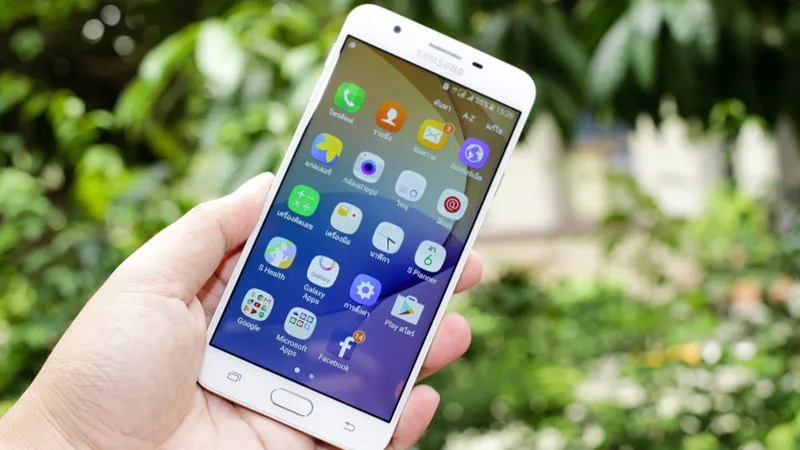
Software updates are crucial for every Android device. It’s a bit of a shame that most of them haven’t even received basic security updates, let alone Android OS updates. How to update Android is a common question asked by many people. There is no single answer to this question, as the exact steps vary from manufacturer to manufacturer, Android version, and sometimes from one device to another (even if both devices are made by the same company). If you’re wondering how to update Android on your device, this guide will show you the basic steps, but the exact method may vary slightly.
How to update Android
Please follow the steps below to update Android on your device. We’ve verified these steps on some phones from Samsung, OnePlus, Nokia, and Google, but if your phone uses a different UI on Android, the steps may be different.
- Open set up
- Most Android devices have a search option at the top. search renew. This will show you System update or its equivalent.
- tap System update.
- tap View now or Check for updates.
- Now you will see updates (if any). Click to download and install.
Once the download is complete, this will update Android on your device. Your device may restart multiple times during the update process, so don’t panic. If nothing happens after step 4, it means your device is most likely running the latest version of Android released by the manufacturer.
For more tutorials, visit our how-to section.

